


Flow Studio preview device is now saved with your flow
The preview device you pick in Flow Studio is now saved with the flow, so a phone or kiosk flow reopens on the right device every time.
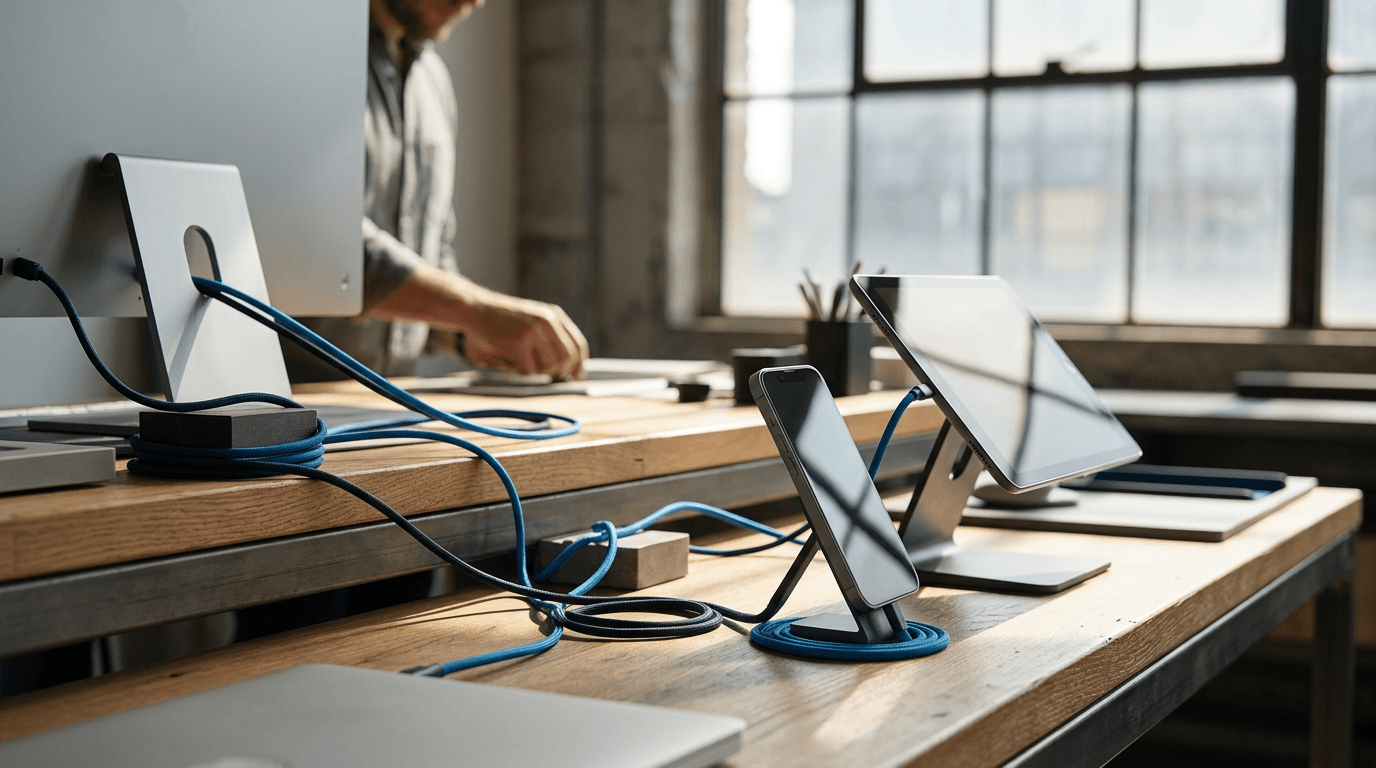
The Flow Studio preview device you pick is now saved with your flow. Choose iPhone for a mobile flow or Kiosk for a self-serve one, and the flow reopens on that device after a reload and in another browser.
What shipped
The device sticks. The device, size and orientation you pick in the preview's device picker are saved with the flow.
Reset to default. A Reset to default option in the device menu takes the flow back to your default device.
Nothing changes until you choose. A flow with no saved device keeps following your default device.
Your AI tool can set it too. A tool connected to Flow over MCP can set a flow's preview device, when it creates the flow or later.
Who it's for
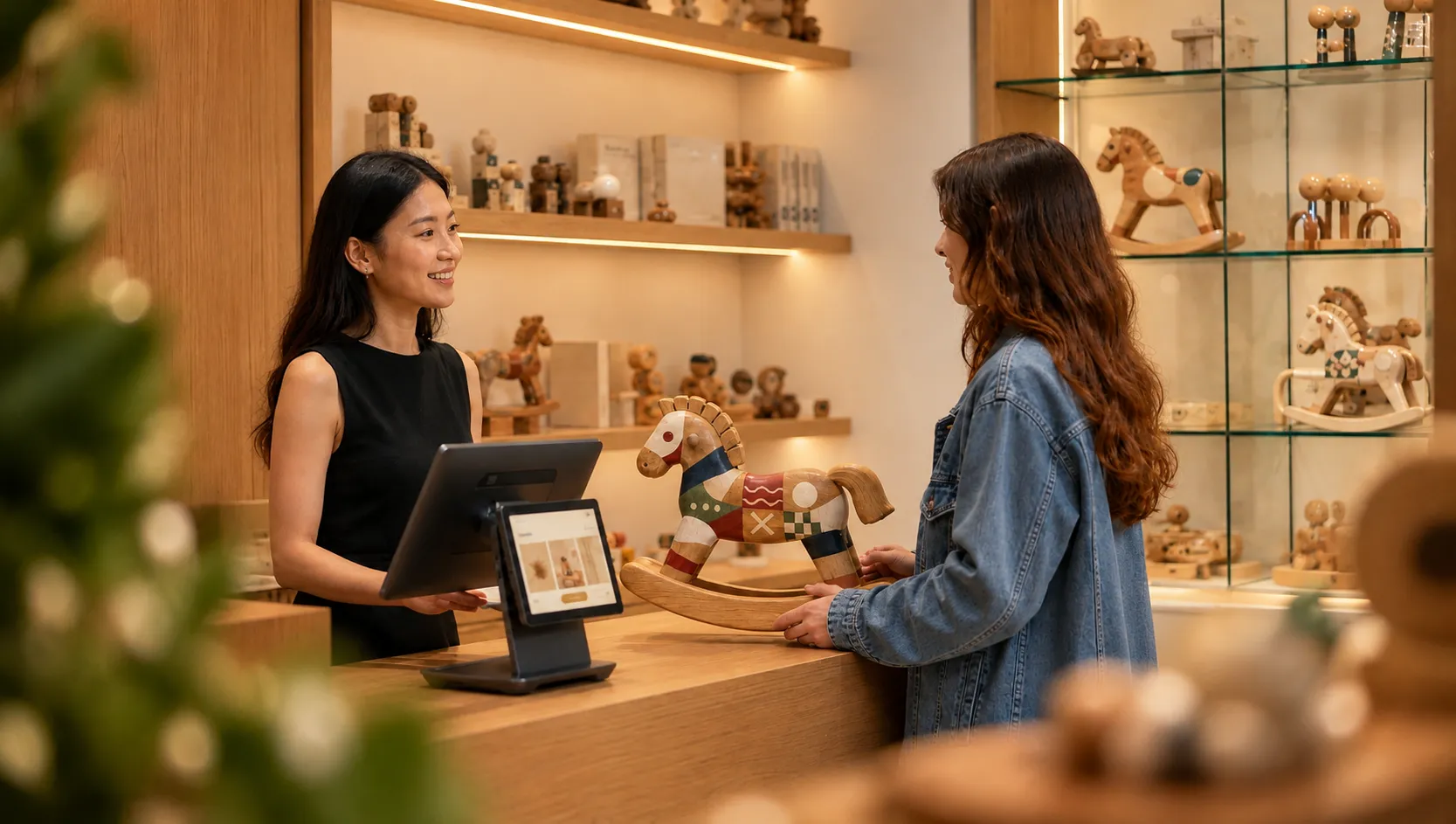
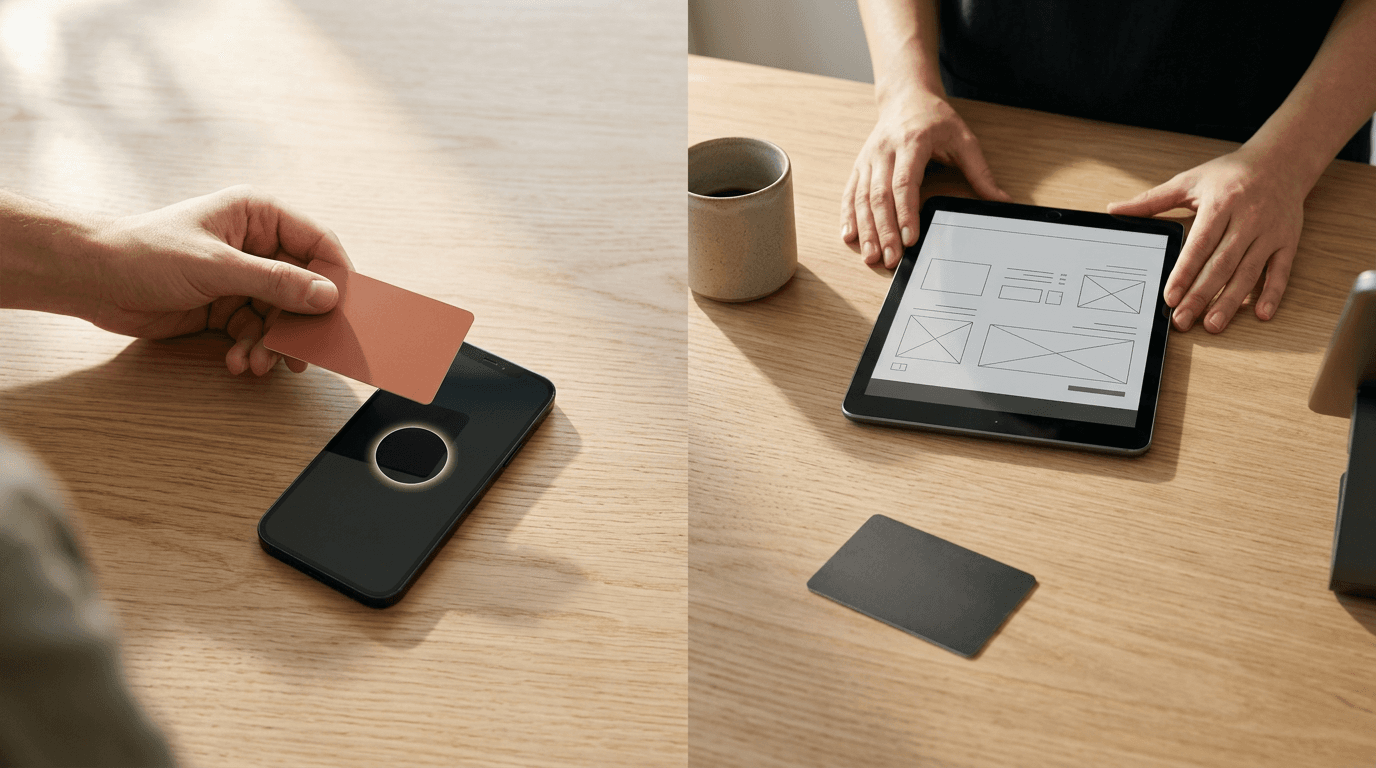
Anyone building a flow that isn't meant for a desktop screen. If you build a checkout for a phone, a kiosk or a payment terminal, the preview now opens the way your customers and staff will see it, every time you come back to it.
How to get started
Open a flow in Flow Studio and pick a device in the preview's device picker. That's it. The choice is saved with the flow.
For a tour of the device picker and every other part of the screen, see The Flow Studio workspace: layout explained.
Building with your own AI tool? Tell it the flow is for a phone, a kiosk or a terminal and it can set the preview device for you. Build a flow with your own AI tool over MCP walks through the whole process, and Connect your own AI to Flow Studio (MCP) covers the connection. Developers who call the tools directly can pass a device to create_flow or use set_flow_device.
If you build flows for clients, White-Label POS for Agencies shows how agencies put Flow Studio to work.