


Barcode Scanners in a Custom POS App: HID Mode vs SDK
A barcode scanner can connect to a custom POS app in five minutes using keyboard (HID) mode, or through a native hardware SDK. Here is how both modes work, why HID breaks iPad keyboards, and how to handle scans reliably at the counter.
 Mathias NielsenCEO, Final POS
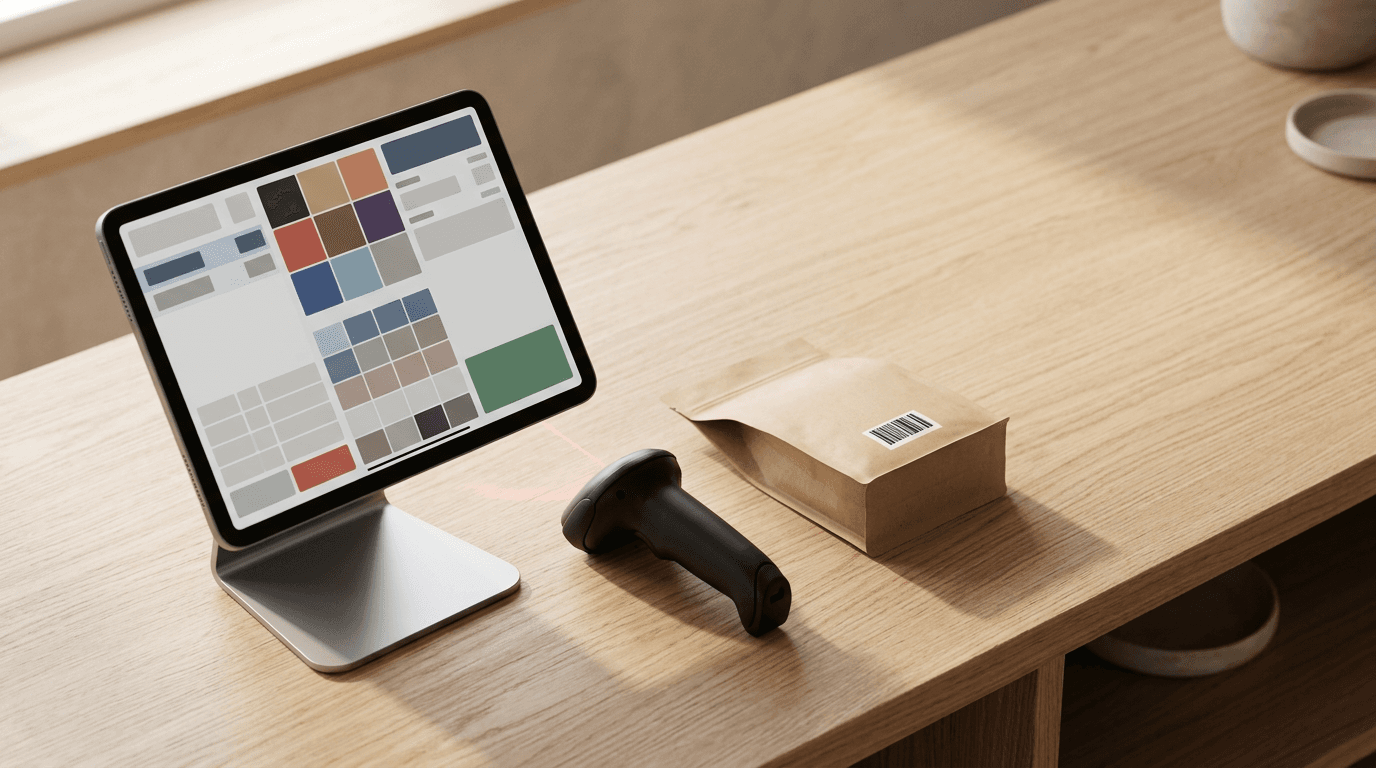
You just spent an afternoon prompting an AI app builder to generate a retail checkout screen. The product grid looks sharp in your laptop browser, the cart math works, and you're ready to test it with a real $200 Bluetooth barcode scanner. Then you pull the trigger on a box of cereal and one of two things happens: nothing at all, or the barcode numbers dump straight into the customer search bar while the iPad's on-screen keyboard slams shut.
Of all the components involved in connecting POS hardware to custom apps, the barcode scanner is the easiest to start with and the most annoying to finish. Bluetooth receipt printers hit a wall of Apple MFi certifications and browser security blocks before they print a single line. Barcode scanners have a built-in cheat code: they can pretend to be a keyboard.
That gets a prototype working in five minutes. What happens on day two at a busy retail counter determines whether you stick with keyboard emulation, integrate a native hardware SDK, or skip the custom hardware plumbing altogether.
How Does Keyboard (HID) Mode Work in a Barcode Scanner POS App?
TL;DR: Human Interface Device (HID) mode makes a barcode scanner act like an external hardware keyboard, typing the scanned digits into whatever window or browser tab is active and pressing Enter at the end.

In HID mode, the operating system treats a barcode scanner exactly like an external hardware keyboard, which automatically hides the iPad's on-screen keyboard.
Human Interface Device (HID) mode is the factory default on almost every USB and Bluetooth scanner made by Socket Mobile, Zebra, Honeywell, and Tera. Pair a Bluetooth scanner to an iPad or plug a USB scanner into a Windows register in HID mode, and the operating system doesn't know it's talking to a laser or a 2D imager. It thinks you plugged in a physical keyboard.
When the cashier scans a 12-digit UPC code, the scanner fires twelve rapid keystroke events (keydown, keypress, keyup) followed by a termination character, usually a carriage return (Enter, keycode 13) or a Tab. Because every OS and web browser already knows how to receive typing, HID mode works everywhere. No WebUSB, no native iOS wrapper, and no hardware vendor approval required. If your barcode scanner POS app runs in mobile Safari, Chrome, or an Electron shell, HID scans show up immediately.
Touchscreens break this illusion fast.
When you pair a Bluetooth scanner in HID mode to an iPad or Android tablet, the tablet assumes a physical keyboard is attached and hides the on-screen virtual keyboard. Your cashier scans three shirts, then needs to type a customer's email address or a custom discount note. They tap the text field. Nothing pops up. Some Bluetooth scanners include a physical double-tap button that forces the iOS keyboard back on, or you can train staff to turn the scanner off when typing, but cashiers hate dealing with that during a Saturday rush.
Catching Scans Without a Focused Text Field
Beginners building a custom POS usually put an <input type="text"> box at the top of the screen, add an autofocus attribute, and call it a day. That lasts about four minutes in a real store.
The moment a cashier taps a category button, adjusts a quantity, or opens a customer modal, the text input loses focus and the next scan goes into the void. Worse, if the cashier is editing a customer's phone number or typing a $10.00 cash tender amount when their colleague bumps the scanner on the counter, that 12-digit barcode goes right into the tender box. Your register just recorded a $40,123,456,789.00 cash payment.
To make an HID barcode scanner POS app usable, detach scanning from input fields and listen for keystrokes globally on the window or document object. You distinguish a barcode scanner from a human typing by measuring the time between keystrokes.
A fast human typist leaves 80 to 150 milliseconds between keys. A barcode scanner in HID mode dumps characters into the buffer every 5 to 20 milliseconds. Here is how your global listener should handle it:
Measure the interval: Track the
performance.now()timestamp of everykeydownevent. If the gap between the current key and the previous key is under 35 milliseconds, append the character to a hidden scan buffer.Watch for the terminator: When an
Enterkey arrives right after a rapid string of characters (usually 6 or more in under 250 milliseconds total), fire youronBarcodeScanned(buffer)function and clear the buffer.Swallow the events: If your listener detects a high-speed burst while an unrelated input field is focused, intercept and strip those characters so the barcode doesn't pollute a customer name or price override field.
Even with a solid timing listener, Bluetooth congestion or a dying scanner battery can slow down keystroke delivery in HID mode and split a 13-digit barcode into two failed searches. If a retailer can't tolerate that, or if they need the iPad keyboard to behave normally, you need SDK mode.
Native SDK (SPP / MFi) Mode vs. Keyboard Emulation
Switching a scanner out of keyboard mode puts it into Serial Port Profile (SPP) on Android and Windows, or Apple's External Accessory protocol (MFi) on iOS. Hardware manuals usually call this "Application Mode" or "iOS Mode." To switch, you scan a factory command barcode printed in the quick-start guide.

A dedicated 2D hardware imager decodes barcodes in under 100 milliseconds without forcing cashiers to hold heavy items in front of a tablet camera.
In SDK mode, the scanner stops pretending to be a keyboard and opens a direct data channel to your native app through the manufacturer's toolkit (like Socket Mobile's CaptureSDK or the Zebra Barcode Scanner SDK). Compiling a native app and integrating a vendor SDK is extra work, but it solves the worst headaches of HID:
The on-screen keyboard works. iOS and Android recognize the device as a dedicated peripheral, so the virtual keyboard pops up whenever a cashier taps a text box.
Clean data packets. No guessing with 30-millisecond keystroke timers. When a scan happens, the SDK fires a clean event callback with the exact string, regardless of where the cursor is focused.
Symbology metadata. An HID scanner just types
012345678905. An SDK connection tells your app what it scanned: "This is a UPC-A code, 12 characters long." That matters when your app needs to tell an internal Code 128 gift card apart from a retail product barcode of the same length.Hardware control. Your POS app can read the scanner's battery percentage, trigger a red LED blink and an error beep on the scanner when an item is out of stock, or disable the trigger while a payment processes.
The trade-off is lock-in. Browser apps can't use Bluetooth Classic MFi SDKs because Apple blocks Web Bluetooth and arbitrary hardware sockets in Safari. If you want SDK mode on an iPad, you have to build and maintain a native iOS app. Write your integration for Socket Mobile's SDK, and your code won't talk to the Honeywell scanner a merchant brings in the next day.
Can a Phone or Tablet Camera Replace a Dedicated Scanner?
Every modern phone and tablet has a high-resolution camera, and browser APIs like getUserMedia (paired with ZXing or the native Barcode Detection API) let web apps read barcodes through the lens. For a pop-up booth selling 30 candles on a Saturday, or a manager doing a quick shelf spot-check, camera barcode scanning in a POS works fine.

Retail POS apps must parse everything from standard 12-digit UPCs and price-embedded deli scale labels to 2D QR codes on customer phone screens.
At a permanent checkout counter with five customers in line, camera scanning falls apart.
A camera has to wake up the sensor, hunt for autofocus under fluorescent store lighting, adjust exposure for a glossy plastic wrapper, and decode a video frame. That takes 1.5 to 3 seconds per item. A dedicated 2D hardware imager uses an aiming LED, a global shutter sensor tuned for contrast, and dedicated decoding silicon to read a crumpled barcode in under 100 milliseconds from ten inches away.
Ergonomics are just as bad. On a counter-mounted tablet, the cashier has to wrestle a 20-pound bag of dog food or a wet bouquet of flowers in front of the front-facing camera until it beeps. Running a tablet camera and screen at 100% brightness all day also turns the device into a space heater and drains the battery in hours.
Barcode Formats You Will Meet in Retail
Whether you capture scans via HID keystrokes or a native SDK, your database lookup logic has to handle the quirks of physical retail labels. Not every barcode is a clean 12-digit match.
UPC-A and EAN-13: Standard 12-digit (North America) and 13-digit (international) product codes. Watch out for leading zeros: a UPC-A code like
042100005264is identical to the 13-digit EAN-13 code0042100005264. Some scanners strip leading zeros by default while others prepend them, so normalize your catalog SKUs or searches will miss.UPC-E: A compressed 6- or 8-digit UPC used on chewing gum packs and cosmetics where a full barcode won't fit.
Code 128: A high-density linear format that encodes both letters and numbers for internal shelf tags, serial numbers, and gift cards.
Price-embedded barcodes (GS1 DataBar / UPC prefixes): Delis, butcher shops, and bulk candy stores print barcodes on their scales. A 12-digit barcode starting with
2(like201234008952) won't match a static SKU in your database. The01234is the item PLU for ribeye steak, and00895means the package costs $8.95 (or weighs 0.895 lbs). Your POS app has to parse the prefix, look up the base item, and override the cart price or weight on the fly.2D QR and DataMatrix codes: Required for scanning digital loyalty passes off a dim smartphone screen, reading receipts for returns, or checking serialized electronics. Older 1D laser scanners—the ones with a single thin red line—can't read QR codes or phone screens at all. Merchants need a 2D area imager.
Scanning on Final Stations
Building a custom checkout flow shouldn't mean spending two weeks debugging iPad keyboard focus bugs or writing barcode prefix parsers from scratch. Final is a customizable POS where Flow Studio lets you design the exact counter, kiosk, or handheld layout your store needs while we handle the hardware plumbing underneath.
Most teams start from a template in the Flow Library and adjust the screens, conditional logic, and actions, or describe their store in Flow Studio to generate a flow automatically. Because every flow sits on real commerce rails, catalog lookups, variant matching, and hardware connections are already wired.
When you deploy via Run, scanner setup depends on how you run your Station (see Native Station vs. Virtual Station for the full breakdown):
Final Station (Native App): Running natively on iOS, Android, macOS, and Windows, Final Station connects directly to supported Bluetooth and USB barcode scanners, receipt printers, cash drawers, and card terminals for Final Pay. You get hardware scanning without browser focus hacks, plus offline mode so the register keeps ringing sales and syncs automatically when the connection comes back.
Purpose-built Final Hardware: If you want an all-in-one setup without pairing Bluetooth accessories, Final Flex supports the clip-on Flex 2D Barcode Scanner and the Flex NFC + MSR + Scanner Module for handheld floor sales. For fixed counters and self-checkout, both the Flex Retail Desktop Stand and the Flex Retail Floor Stand build the receipt printer and barcode scanner right into the base.
Virtual Stations: For low-volume pop-ups, training, or back-office work, plug any standard HID USB scanner into a laptop browser running a Virtual Station.
If you're tired of fighting browser keystroke listeners and Bluetooth pairing manuals just to get a custom checkout working, open Flow Studio. You get 1,000 free build credits every day (up to 5,000 a month) and $0 monthly software fees to customize your POS, connect your scanner, and start ringing up items this afternoon.
Frequently asked questions
Do barcode scanners work with web apps?
Yes. Any USB or Bluetooth barcode scanner set to keyboard (HID) mode works with web apps out of the box. In HID mode, the scanner acts like an external keyboard, firing scanned digits as rapid keystrokes followed by an Enter key that your web app can catch with a global JavaScript keydown listener.
What barcode formats does a POS need?
At a minimum, a retail POS must handle 12-digit UPC-A and 13-digit EAN-13 barcodes for standard retail goods, plus compressed UPC-E codes for small items. Most stores also need Code 128 for internal labels and gift cards, price-embedded prefixes for weighted deli or bulk items, and 2D QR codes for scanning receipts and loyalty passes off phone screens.
Can a phone camera replace a scanner?
A phone or tablet camera works fine for low-volume pop-up shops, line busting, or quick inventory spot-checks. At a busy checkout counter, dedicated 2D hardware scanners are much faster and more reliable—decoding barcodes in under 100 milliseconds without hunting for autofocus or draining your tablet battery.