



How to remove a feature from your POS that you never use
Most POS systems only let you hide a feature you never use, not remove it. Here are the workarounds that hold up, where hiding falls short, and what real removal looks like.


On most systems you cannot truly remove a feature from your POS, no matter how long it has sat unused. The realistic ceiling is hiding it: rearranging the checkout screen, locking it behind permissions, and uninstalling anything you added yourself. Those workarounds are worth doing, and this guide walks through them. It also covers where they stop working, and what it takes for "remove" to actually mean remove.
Why can't you delete built-in POS features?
Because the feature set is the product. A traditional POS vendor ships one application to every merchant it serves: cafes, mechanics, boutiques, salons. That one interface has to carry every feature any of those businesses might need, so the loyalty prompt, the table map, or the appointments tab rides along whether or not your store will ever touch it. Settings pages control visibility, not existence. Toggle something "off" and the vendor's code is still there, still shipping in every update, still one menu away.
That is not a scandal, just the economics of one-size-fits-all software. But it explains why the answer to "how do I delete this" in every vendor's help forum is some version of "you can't, here is how to hide it."
What can you actually do about unused features?
Four workarounds hold up, roughly in order of effort:
Edit the checkout screen layout. Most systems let you rearrange the item grid or home screen and pull rarely used tiles off the first screen. This is the highest-value ten minutes you can spend on a cluttered till.
Use roles and permissions. Functions your floor staff never need, like refund overrides, reports, or settings, can usually be restricted by role. That doubles as decluttering, because a function nobody can reach is a function nobody mis-taps mid-rush.
Uninstall add-ons you installed. Anything that arrived through an app marketplace or integrations page can usually be removed for real. If the clutter came from an experiment you bolted on last year, start here: this is the one true removal a fixed POS offers.
Downgrade the plan. If the unused feature is tier-gated (bundled into a pricing level you pay for monthly), check whether a cheaper tier drops it along with the cost. Read the fine print on what else disappears with it.
Do these and a cluttered POS gets noticeably calmer. New staff learn the till faster, and the wrong-button taps drop. The same discipline helps with deeper annoyances too, like a system that makes you remove tax by hand on every exempt sale.
Why is hiding not the same as removing?
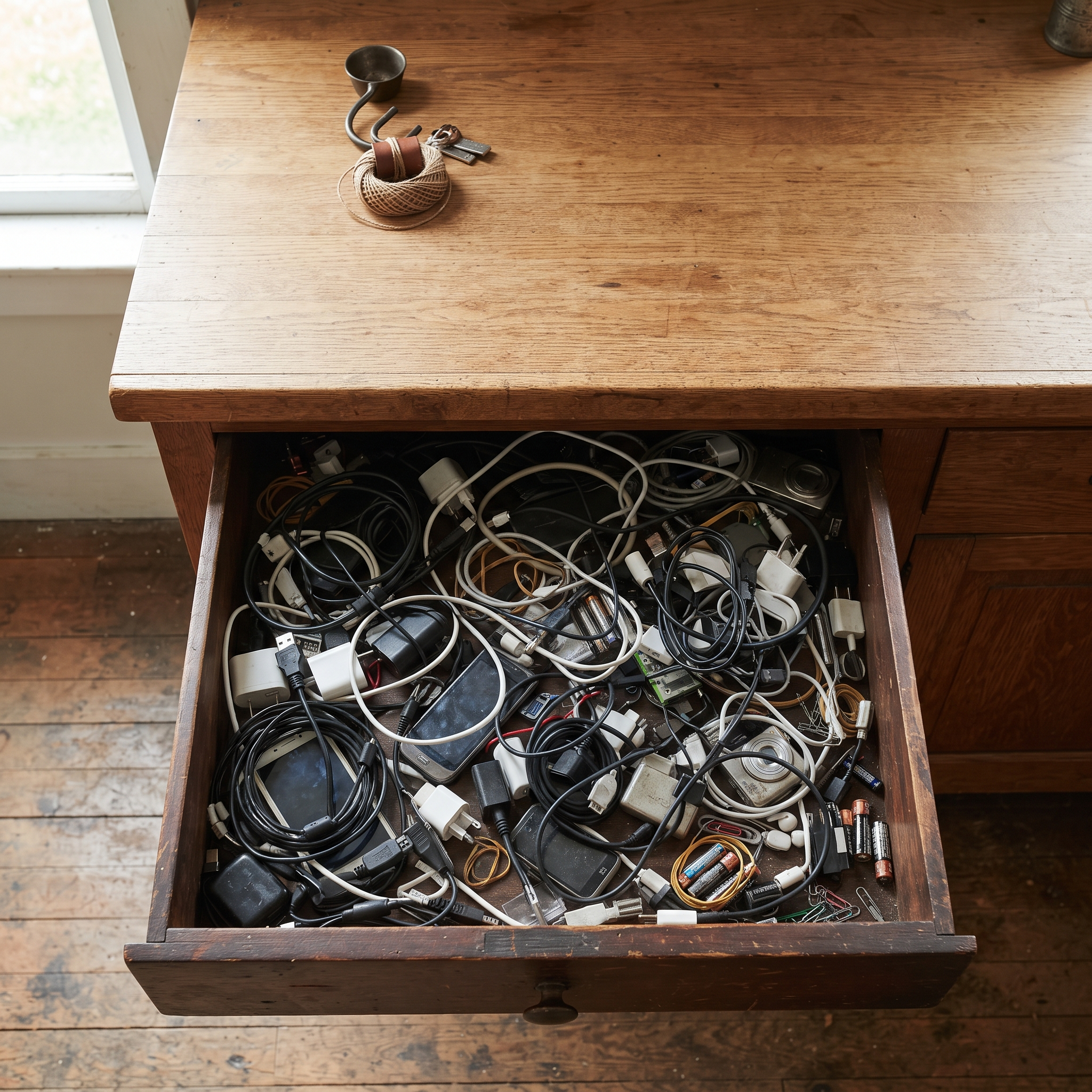
Because the feature is still in the building. It shows up in settings search, in update notes, in training videos, and in the "what does this button do?" questions from every new hire. A vendor redesign can resurface it on a screen you cleaned up a year ago. If it is tier-gated, you may still be paying for it every month. And a button you pulled off the home screen is often still reachable two taps deep, which is exactly where an untrained thumb finds it during a Saturday rush.
Hiding manages clutter. It does not shrink the software, the training load, or the bill. Merchants have noticed: checkout flows that fit the sale, rather than a fixed everything-screen, sit near the top of what merchants asked their POS for in 2026. And when hiding is the only tool available, stores pile workaround on workaround until the workarounds become the system.
What does actually removing a POS feature look like?
It looks like a checkout that was built from a description of your business instead of installed as a fixed app. On a prompt-based POS, the checkout screen is generated from what you said you needed. Nothing is on it unless you asked, and anything you stop needing can leave the same way it arrived: by saying so.
Final works this way. Your checkout is a flow, a checkout experience built from a plain-language description, and you edit it by chatting. "Take the loyalty prompt out of checkout" is a one-line change with a live preview, a restorable checkpoint if you change your mind, and a redeploy (pushing the updated flow to your stations) when you are happy. Removing a feature is not a migration; your catalog, payments, and reporting are untouched. The same conversation works in reverse when December arrives and you want the feature back for six weeks. And if you would rather get the layout right on the first try, describe the transaction instead of the screen; prompts that produce great POS layouts covers the patterns.

So, how do you remove a feature from your POS?
On a fixed POS: hide it, restrict it by role, and uninstall what you added. That is the honest ceiling, and it is still worth the afternoon it takes. Actual removal only exists where the checkout is built rather than bought, because you cannot delete code the vendor ships to everyone. The rule of thumb: if a feature can only be hidden, you are still paying for it in screen space, training time, and mis-taps. If you want to see what a checkout with nothing extra on it feels like, building a first flow takes about ten minutes.
Frequently asked questions
Why can't I delete built-in features from my POS?
Traditional POS vendors ship one application to every merchant they serve, so the feature set is the product. Settings control visibility, not existence: built-in features can be hidden or restricted, but the code stays and ships with every update.
Does hiding unused POS features make checkout faster?
Modestly, yes. Fewer visible buttons cut mis-taps and shorten staff training. The feature still exists in menus and settings, though, so the clutter is managed rather than gone.
Can removing unused features lower my POS bill?
Sometimes. If the feature is part of a paid tier or an add-on subscription, cancelling or downgrading removes the cost along with the feature. Hiding a built-in feature on a flat plan changes nothing on the bill.
What is the fastest way to declutter a POS screen?
Edit the home screen or item grid first, then restrict staff-facing functions by role, then uninstall any add-ons you no longer use. Most systems support all three, and the layout edit alone removes most of the daily friction.
Can I bring a removed feature back later?
On a fixed POS, unhide it or reinstall the add-on. On a prompt-based system like Final, you ask for it again: changes are versioned with restorable checkpoints, so seasonal features can come and go.