



Bluetooth, BLE or Network: Choosing a Receipt Printer for an iPad POS
Trying to connect a receipt printer to a custom or AI-built iPad POS? Here is how Bluetooth Classic, BLE, and Network printers actually work on iOS—including MFi rules, Safari limitations, and multi-station routing.
 Mathias NielsenCEO, Final POS
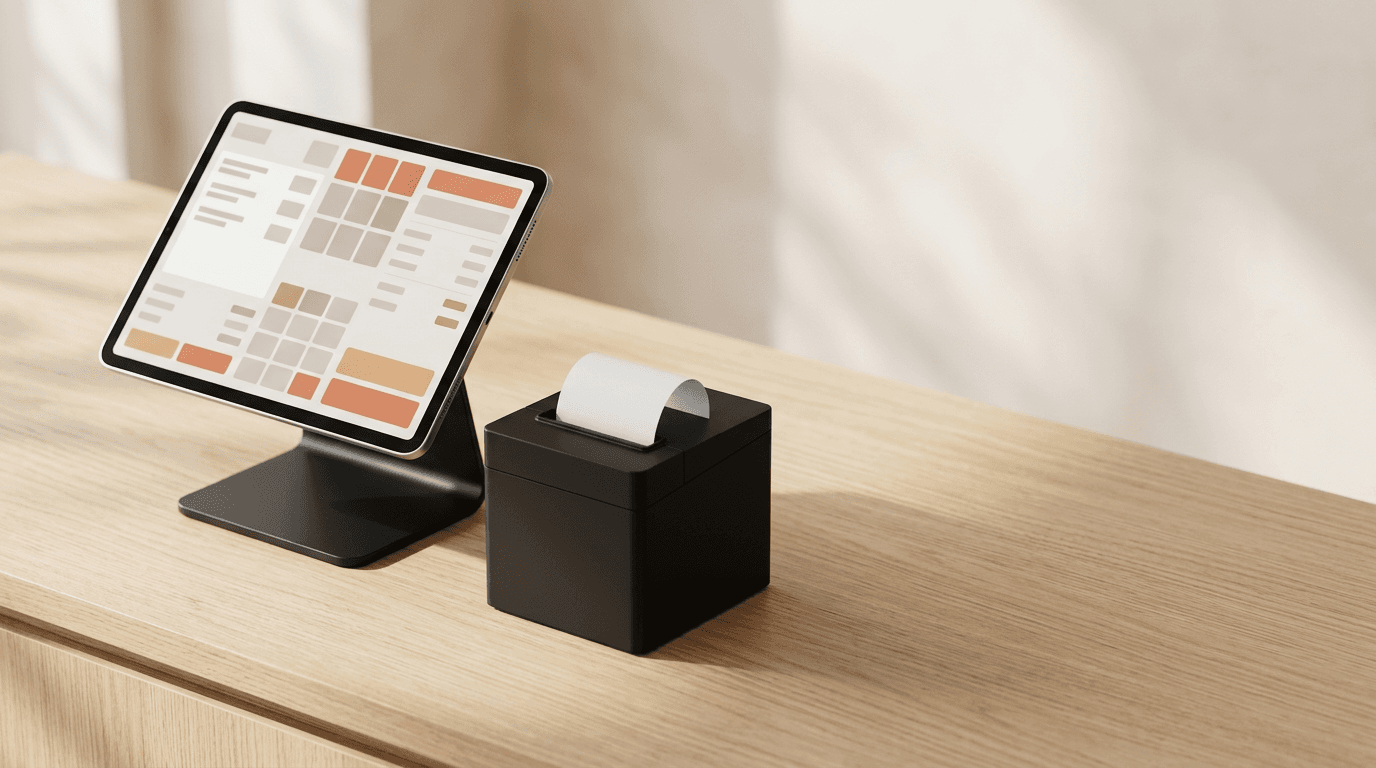
You just spent an afternoon generating a custom checkout app in an AI builder like v0 or Bolt. The UI looks clean in the desktop browser preview, the cart calculates tax, and the buttons respond instantly. Then you walk over to the counter, open the app in Safari on an iPad, and try to pair a Star TSP143IIIBI thermal printer.
Nothing happens.
Mobile Safari doesn't support the Web Bluetooth API. Even if you wrap your web app in a native iOS shell to get around the browser limitation, iOS blocks raw Bluetooth Classic connections to external hardware unless the manufacturer has registered your specific app bundle ID with Apple. The receipt printer is where a weekend prototype meets the hardware wall. As we cover in our full guide to POS hardware for custom apps, choosing how that printer talks to the iPad dictates your code architecture, your Apple App Review timeline, and whether your counter survives a Friday night rush.
Comparing the Four iPad Printer Connection Types
A receipt printer connects to an iPad POS in one of four ways: Bluetooth Classic, Bluetooth Low Energy (BLE), local network (Ethernet LAN or Wi-Fi), or USB with Lightning/USB-C power delivery. Each connection protocol uses a different layer of the iOS hardware stack and puts different restrictions on custom software.

Hardwired Ethernet LAN and USB-C connections offer fixed counters reliable data transfer without wireless interference.
In short: Ethernet is the most reliable choice for fixed counters and allows web-based printing. Bluetooth Classic is the legacy mobile standard that triggers Apple MFi paperwork, while BLE avoids Apple's gatekeeping at the cost of slower print speeds on heavy graphics.
1. Bluetooth Classic (BR/EDR)
Bluetooth Classic is the traditional wireless standard used by workhorse printers like the Star TSP143IIIBI and Epson TM-m30II. It pushes data fast enough that a 20-item receipt prints with zero hesitation.
On iOS, however, Bluetooth Classic uses the External Accessory framework. You can't connect to it from a browser, and you can't ship a native app that talks to it without a manufacturer-issued Product Plan ID (PPID). Save this option for single-iPad counters where running an Ethernet cable to the router isn't practical, and where you're already using an established native POS app that holds Apple MFi approval.
2. Bluetooth Low Energy (BLE)
Newer printer models like the Star mC-Print3 and Star TSP143IV-UE support BLE alongside standard interfaces. On iOS, BLE runs through CoreBluetooth rather than the External Accessory framework, making it great for custom native iOS apps that need wireless one-to-one pairing without waiting weeks for MFi paperwork.
The tradeoff is bandwidth. BLE was designed for small bursts of sensor data, not streaming rasterized bitmaps of store logos. Text-based ESC/POS commands fire quickly, but if your receipt prints as a full graphic image (which many modern web-to-print wrappers do to handle custom fonts), BLE will noticeably stutter or print slower than Bluetooth Classic.
3. Network (Ethernet LAN and Wi-Fi)
A network receipt printer plugs directly into your store's router via an Ethernet cable (or connects via Wi-Fi) and gets a local IP address on your subnet. The iPad talks to the printer over the local network via TCP/IP (usually port 9100 for raw printing) or HTTP/HTTPS. This is the right setup for almost every fixed retail counter, multi-station checkout, kitchen ticket routing system, and browser-based POS app.
You will need physical access to your router or a clean Wi-Fi setup with static IP assignments (DHCP reservations). If your router reboots after a power flicker and assigns the printer a new IP address, a poorly coded custom app will lose the printer until someone updates the settings.
4. Wired USB (Lightning / USB-C)
Printers like the Star TSP143IIIU and mC-Print3 connect directly to an iPad via a USB-C or Lightning cable, charging the tablet and sending print data at the same time. It physically tethers the iPad to the counter, and depending on the hardware implementation, wired USB communication to an iOS accessory frequently falls under Apple's MFi External Accessory rules just like Bluetooth Classic. Still, it's a lifesaver for dedicated single-station checkouts where staff keep unplugging the iPad charger to charge their personal phones.
Why Does a Bluetooth Receipt Printer for iPad Trigger MFi Approval?
Apple's Made for iPhone/iPad (MFi) program requires hardware manufacturers to put an authentication coprocessor inside Bluetooth Classic and wired accessories. When your custom iOS app tries to talk to a Bluetooth receipt printer for iPad, the operating system checks your app's Info.plist for matching protocol strings (such as jp.star-m.starpro) and verifies with Apple App Review that the hardware manufacturer has explicitly authorized your app.
If you write a custom iPad POS in Swift or React Native, integrate the Epson ePOS SDK or StarPRNT SDK, and submit it to the App Store to work with a Bluetooth Classic printer, Apple will reject your binary unless you provide a PPID in the review notes. You don't get that number from Apple. You have to apply to Star Micronics, Epson, or Zebra, fill out their questionnaire detailing every specific printer model you support, and wait for them to submit your app's bundle ID to Apple's portal.
Every time you add a new Bluetooth Classic printer model to your custom app, you repeat that submission cycle. We documented the exact paperwork and timelines in our guide on whether you need MFi approval to print receipts from an iPad app.
BLE and Network printers bypass this completely. Because CoreBluetooth (BLE) and standard TCP/IP networking (Ethernet/Wi-Fi) are open standards on iOS, Apple doesn't require MFi whitelisting for apps that use them. If you want to skip writing a native iOS wrapper altogether, network printers offer built-in HTTP servers like Star WebPRNT and Epson ePOS-Print. These let a browser-based POS send XML or JSON print payloads directly from Safari over the local Wi-Fi network to the printer's IP address, though you still have to manage self-signed SSL certificates on the printer if your web app runs on https://.
Reliability in a Busy Store: Range, Pairing, and Interference
Specs on a developer documentation page look very different than a 60-seat restaurant at 7:30 PM on a Friday.

In busy restaurants and cafes, a hardwired Ethernet printer and RJ12-connected cash drawer prevent wireless drop-offs and drawer delays.
Take a restaurant owner like Sarah running a busy dinner service on the Avalon Peninsula. She has an espresso machine, two commercial microwaves, a stainless-steel pass, and forty guests with smartphones in their pockets. If she relies on a Wi-Fi receipt printer sitting on the far side of the bar, the 2.4 GHz spectrum gets crowded fast. Tickets lag by four seconds, or drop when a kitchen door swings shut.
In a real store, a "network printer" means hardwired Ethernet LAN. Running a $12 Cat6 cable from the printer to the local router eliminates wireless interference between the router and the printer, leaving only the Wi-Fi hop from the iPad to the access point. If you're using a stand like Final Flex, our Flex PoE Module provides Power-over-Ethernet through a single cable, removing Wi-Fi from the equation entirely.
Bluetooth brings its own operational quirks to the counter:
Pairing hijacks: Bluetooth Classic maintains a strict 1-to-1 pairing with the host iPad. If a server takes that iPad to the back office to count stock and walks out of the ~30-foot range, the connection drops. If a second manager's iPad in the room has previously paired with that printer, it might auto-connect while the first iPad is out of range, hijacking the printer until someone manually unpairs it in iOS Settings.
Cash drawer delays: In almost every POS setup, the cash drawer doesn't talk to the iPad. It plugs into the back of the receipt printer via a 24V RJ12 cable that looks like a thick phone cord. When a sale finishes, the POS sends a specific ESC/POS hex pulse to the printer, and the printer kicks the drawer open. If a Bluetooth connection goes to sleep to save power and takes two seconds to wake up and handshake, your cashier is left standing there staring at a closed drawer with twenty-dollar bills in their hand.
Can Multiple iPads Share One Receipt Printer?
A single Bluetooth Classic printer cannot stay actively paired and accept simultaneous print jobs from three different iPads at the same time. Some newer printers include "auto-switching" firmware that disconnects and reconnects between hosts, but in practice, it adds a 2-to-5 second delay per ticket and fails when two cashiers hit "Print" at the exact same millisecond.

Over a local Ethernet network, multiple iPads at a wrap desk can queue and print receipts to a single shared printer simultaneously.
If you have two iPads at a front counter, or three servers carrying iPad Minis on the floor sending drinks to one bar printer, you need an Ethernet network printer. Over a local network, any number of iPads can send print jobs to the printer's IP address on port 9100 or via HTTP. The printer's internal network card queues the jobs and prints them sequentially without dropping tickets or unpairing devices.
Decision Table: Choosing the Right Interface by Store Type
| Store Setup | Recommended Interface | Why It Wins | What to Avoid |
|---|---|---|---|
| Single-iPad Café or Boutique | Ethernet (LAN) or Bluetooth Classic | Ethernet is rock-solid if the router is under the counter. If the router is in the back office, a single Bluetooth Classic printer pairs cleanly to one iPad without pulling cable. | Cheap Wi-Fi-only printers that drop off the network when the microwave runs. |
| Multi-Station Retail Counter | Ethernet (LAN) | Two or three iPads can share one receipt printer and one cash drawer at the main wrap desk without pairing conflicts. | Bluetooth Classic (will lock onto one iPad and ignore the others). |
| Restaurant (Counter + Kitchen) | Ethernet (LAN) | Allows any iPad on the floor to route food tickets to the kitchen printer and drink tickets to the bar simultaneously. | BLE or Bluetooth (range won't reach the kitchen through walls, and can't handle multi-device routing). |
| Pop-Up, Food Truck, or Market Stall | Bluetooth Classic or BLE | You don't have a local router or Ethernet switch in a tent. A battery-powered or 12V Bluetooth printer pairs directly to an iPad or iPhone running on cellular data. | Network printers (require a travel router just to get the iPad and printer on the same subnet). |
| Custom Browser-Only Web App | Ethernet (Star WebPRNT / Epson ePOS) | Browsers on iOS cannot access Bluetooth. Network HTTP printing is the only way to print directly from Safari without building a native iOS wrapper. | Any Bluetooth or USB printer (completely invisible to Mobile Safari). |
Skip the SDKs: What Final Stations Support Out of the Box
Building your own checkout workflow with AI shouldn't mean spending three weeks reading 400-page ESC/POS manuals, debugging CoreBluetooth buffer limits, or waiting on an MFi PPID from a hardware manufacturer just to pass App Store review.
We separated the custom builder from the native hardware layer so you don't have to touch printer SDKs. In Final Build, you describe your store or restaurant workflow, add custom logic, wire up your catalog, and design every pixel of your checkout in minutes using your 1,000 free daily build credits (up to 5,000 a month) with zero coding. Because Build generates a working POS on real commerce rails rather than a standalone HTML mockup, you don't deploy it by opening a random URL in Safari.
You deploy your flow instantly via Final Run to Final Station, our native app for iOS, Android, macOS, and Windows (included at no monthly software fee). Unlike a browser-only web app where local hardware is restricted, running a Native Station in our app gives your checkout direct access to local peripherals and keeps it working offline.
Because Final Station is already a native application with the hardware integrations built in, your custom AI-built checkout gets full hardware access on day one:
Every connection type supported: Connect receipt printers over Bluetooth, USB, Ethernet LAN, or Apple AirPrint directly from Station Settings (see our help guide on how to connect a printer).
Multi-printer routing built in: Running a restaurant or multi-counter shop? You can set up multi-printer routing right on the Station, sending customer receipts to a Bluetooth printer at the stand and order tickets to a LAN printer in the kitchen.
Cash drawers and peripherals wired automatically: Choose your paper size, trigger the cash drawer automatically on a sale, and pair Bluetooth card readers or Final Pay POS terminals (processing at a transparent 2.49% + $0.10 in the US and worldwide, 1.99% + $0.10 CAD in Canada, and 0.99% + €0.10 in Europe, with cash always at $0).
All-in-one hardware when you want it: If you don't want to source standalone printers at all, our Flex Restaurant Desktop Stand and Flex Retail Floor Stand include built-in receipt printers, and the Final Register Bundle comes wired with a D3 Pro Customer Facing Display (CFD), kitchen printer, and Keyboard Max cash drawer—owned outright with no leasing contracts.
If you're building a custom iPad POS today, pick your hardware path before you write a line of print logic. If you want to maintain your own native iOS codebase, buy an Ethernet printer or a BLE model so you don't get stuck in MFi review purgatory. If you want your custom checkout live on the counter this afternoon with the printer you already own, build your flow in Final Build and let Final Station handle the wires.
Frequently asked questions
What receipt printer works best with an iPad POS?
For any fixed counter or multi-iPad setup, a hardwired network (Ethernet LAN) printer like the Star TSP143III LAN or mC-Print3 is the most reliable option and never drops pairing. For mobile setups like food trucks or pop-ups without a router, go with a Bluetooth printer—and pick a BLE-capable model if you're building your own custom iOS app and want to avoid Apple's MFi approval process.
Is BLE the same as Bluetooth for printers?
No. Bluetooth Classic (BR/EDR) and Bluetooth Low Energy (BLE) use completely different frameworks on iOS. Bluetooth Classic printers require your iOS app to go through MFi certification with the printer manufacturer before Apple will allow it on the App Store. BLE uses Apple's open CoreBluetooth framework and requires no MFi approval.
Can two iPads share one receipt printer?
Yes, easily, if you use a network (Ethernet or Wi-Fi) printer. Multiple iPads can send print jobs to the same local IP address at the same time, and the printer queues them in order. Standard Bluetooth Classic printers pair one-to-one with a single iPad at a time, making them a poor fit for shared counters.