



Building Your First iPad POS System: Step-by-Step Setup Guide
Learn how to set up an iPad POS system from scratch, covering hardware selection, software installation, payment processing, and network security.
 Mathias NielsenCEO, Final POS
The initial financial outlay needed to acquire standard POS systems creates strain on operational expenses yet iPad POS systems offer organizations both affordability and flexible deployment features. Businesses that use iPad POS systems benefit from optimized workflow together with improved service for their customers.
The iPad POS systems deliver comprehensive capabilities to users. These systems accept contactless payments and chip cards together with inventory management capabilities and real-time report generation. Apple iOS maintains secure standards which combine with its user-friendly interface to enable quick learning of the iPad POS system by users. Free baseline software subscriptions from the system enable businesses of all sizes to have unrestricted access through their standard agreements.
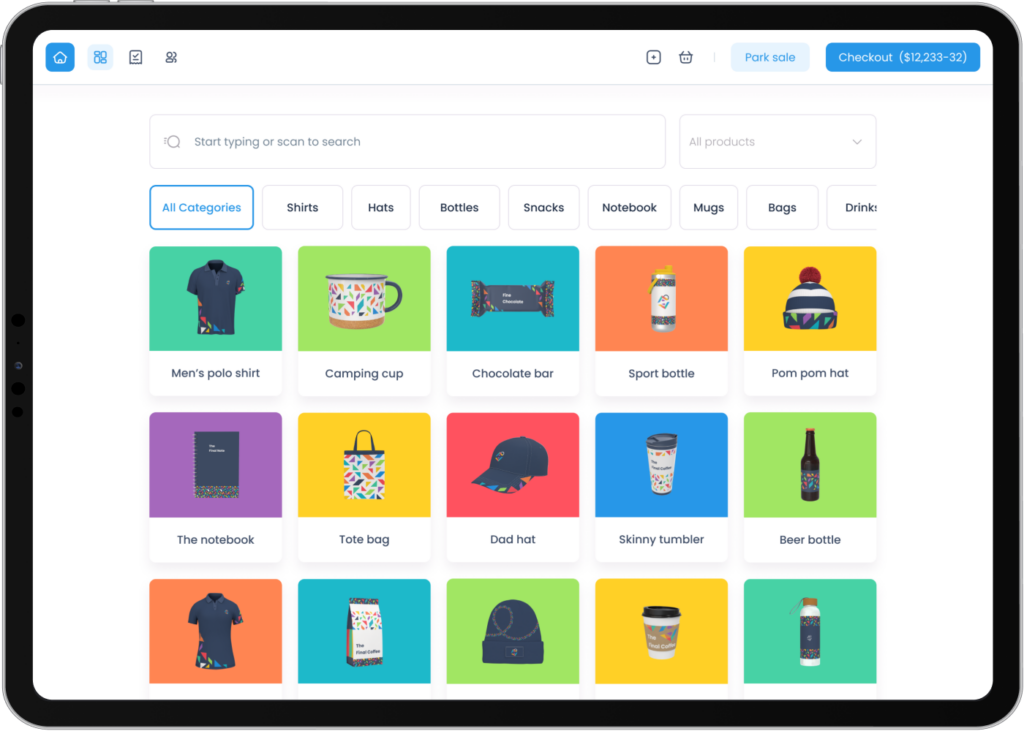
Businesses can quickly create their iPad-based POS system through Final POS by eliminating both complex coding needs and expensive development costs. The POS Builder feature enables users to design a fully customized checkout experience, integrating essential functionalities such as:
Implementing an iPad POS system not only simplifies transactions but also enhances reporting and inventory management, making it an essential tool for businesses.
• Dynamic checkout screens tailored to specific business operations.
• Tap-to-Pay support for seamless transactions.
• Real-time analytics to track sales and customer activity.
• Modular action management, allowing easy automation of workflows within the system.
Choosing the right hardware for your iPad POS system is crucial for optimal performance. Ensure compatibility with your chosen iPad model.
Essential Hardware Components
Reliable iPad POS systems require the correct hardware components as their base foundation. The key components of an efficient iPad POS system require our attention together with their specific requirements.
The selection of your iPad model for running a POS system depends on performance needs and fundamental software compatibility.
iPad Model Selection and Requirements
We needed an iPad that runs iPadOS 13 or later to get the best performance. These iPad models work well with most POS applications:
The variety of card readers available makes it easy to find the perfect match for your iPad POS system. Ensure that your chosen reader is compatible for seamless transactions.
iPad (5th generation and newer)
iPad Air 2 and newer models
iPad Mini (4th generation and newer)
All iPad Pro models
Your older iPads might not support the latest iOS versions, so they may not work with current POS applications.
Implementing card readers that integrate well with your iPad POS system will enhance transaction speed and reliability.
Card Reader Options and Compatibility
Card readers connect to iPads in several ways. Most readers employ Bluetooth Low Energy (BLE) technology for wireless connection. Your card readers should handle:
EMV chip cards
Contactless payments
Mobile wallets (Apple Pay, Android Pay)
Traditional magnetic stripe cards
Some POS systems come with USB-connected card readers that merge with iPad stands. These work better in busy environments.
Additional Peripherals (Printers, Cash Drawers, Scanners)
You can connect receipt printers to iPad POS systems in different ways:
USB/Lightning connection printers
Bluetooth-enabled models
Network (LAN) printers
Printer-driven cash drawers are still the best choice for managing cash, with prices starting at $79. These drawers work naturally with receipt printers and open automatically during transactions.
Barcode scanners boost your inventory management. You can choose from:
Bluetooth-enabled scanners for mobility
USB-connected models for fixed positions
1D and 2D scanning capabilities
Pick peripherals that match your business size and daily needs. Your components should support the latest iOS versions to keep performance and security strong.
Software Installation and Configuration
Your iPad point-of-sale software setup needs careful thought to keep your business running smoothly.
Choosing the Right POS Software
Choose software which matches your current business requirements and future direction. Cloud-based POS solutions deliver exceptional value by automating software updates and backup processes.
The right POS software should give you:
Hardware that works with what you already have
Ways to connect with payment processors
Uninterrupted connection to your business tools
Built-in features to manage inventory
Download and Installation Process
The setup follows a simple path. Here's what you need to do:
Open the App Store on your iPad
Look for your chosen POS app (such as Final POS).
Tap the download icon next to the app name
Enter your Apple credentials to approve the download
Let the installation finish
Start the application
Most modern POS software comes with a setup wizard that makes the process available to everyone, even if you're not tech-savvy.
Initial System Settings Setup
The system needs some simple configuration after installation. Start by adding your core business details like:
Store name and location
Tax settings and rates
Number of stores or locations
Business hours and how you operate
You'll also need to set up user accounts properly. Create different profiles for your team members with the right permission levels. This keeps everything secure and lets your staff access what they need based on their role.
The software produces optimal results through proper configuration of backup systems as well as data sync settings. All connected devices need automatic data synchronization between them because multiple terminals are crucial. Your business growth becomes simple with POS apps which provide endless terminal installations through single subscription plans.
Payment Processing Setup
Payment processing configuration is a vital element of any iPad point-of-sale system. The setup typically requires multiple components working together to ensure secure and efficient transactions. This includes:
• Merchant Account Configuration to facilitate card transactions.
• Payment Gateway Integration to connect the POS system to payment processors.
• Testing Transaction Processing to verify functionality and security.
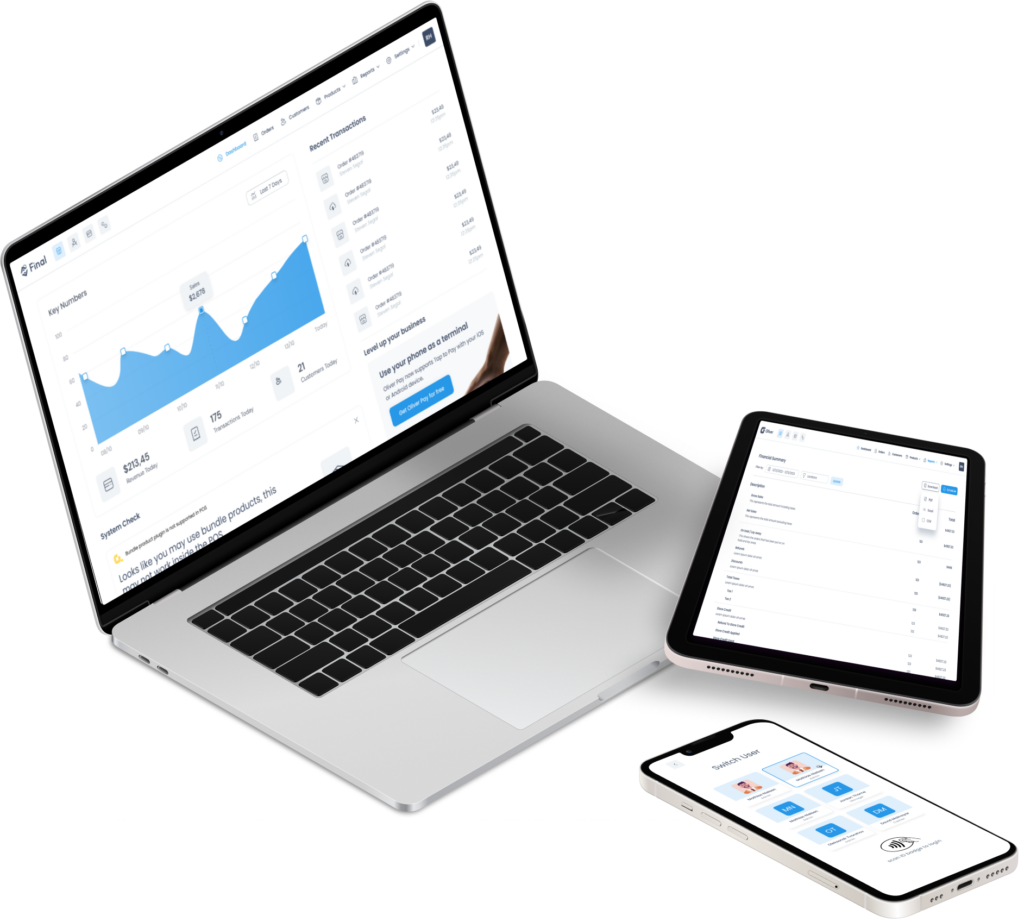
Seamless Payment Integration with Final POS
With Final POS, you don’t need to worry about complex payment integrations. The system is designed with Final, a built-in payment solution powered by Stripe, offering seamless and secure transactions.
Merchant Account Configuration
A merchant account creates the foundations for accepting card payments through your iPad POS system. You will need several documents and steps to complete the setup:
Submit business documentation including:
Business license
Credit history
Personal identification
Bank account details
Take your time to assess your business needs properly. Your merchant account provider will review your application through an underwriting process that determines eligibility and risk factors. You will need to specify if you want a conventional POS terminal setup or flexible payment processing solutions, along with standard documentation.
Payment Gateway Integration
A payment gateway connects your iPad POS to payment processors. The integration process needs strict attention to security protocols. Your payment gateway must support:
EMV chip card processing
NFC transactions
Mobile wallet compatibility
The system depends on encrypted communication between your card reader and payment processor. You can only use card readers from your payment processor because other readers won't match the encryption protocols.
Testing Transaction Processing
A full picture of your system's transaction handling must happen before processing live payments. Your testing should verify:
Simple transaction processing
EMV chip card readings
Contactless payments
Mobile wallet acceptance
Integrating additional peripherals like printers and cash drawers into your iPad POS system can streamline operations further and enhance customer service.
Start with a test transaction of at least USD 1.00 to confirm simple functionality. We focused on proving it right for both successful transactions and proper error handling. Your iPad's geo-location services must stay active because payment processors just need this information to reduce transaction disputes.
Apple gives developers a sandbox environment to test payment processing without production cards. Merchants can verify encryption protocols and terminal functionality in this environment before enabling live transactions.
Network and Security Configuration
Reliable security measures are the foundations of any iPad point-of-sale system that protects business and customer data from potential risks.
Secure WiFi Setup
WPA3 Personal or WPA3 Enterprise protocols will give a strong security layer to your iPad POS network. These protocols use 128-bit AES encryption for standard connections and offer 256-bit AES encryption for enterprise setups.
You can boost network security by:
Remember to maintain data security when configuring your iPad POS system, ensuring that customer information remains protected.
Setting up automatic channel selection to minimize interference
Enabling WMM (Wi-Fi multimedia) to improve performance
Turning off WPS and remote management access
Adding MAC address filtering as an extra security layer
Your router's firmware should stay up to date through automatic updates to maintain security patches and performance improvements.
Data Encryption Implementation
Apple's Data Protection technology keeps information safe in flash storage on iPad devices. The system builds a hierarchy of keys on top of hardware encryption technologies. A new 256-bit key gets created for each file while the hardware AES Engine encrypts data as it writes to storage.
Newer iPad models use AES-256 in XTS mode. This creates both a 256-bit tweak and a 256-bit cipher key through a Key Derivation Function. The Data Vault feature blocks unauthorized access to data, even from non-sandboxed processes.
Backup Systems Configuration
Secure management of critical system backups should be separate from primary cloud services. The backup setup includes multiple security layers:
Data Protection controls work on each file individually and assign them to specific security classes. The system handles encryption keys automatically. Access depends on whether class keys have been unlocked.
Apple File System (APFS) allows keys to be split on a per-extent basis to boost data security. Different parts of files can have separate encryption keys. This keeps other data secure even if one section gets compromised.
The backup system maintains end-to-end encrypted communications. Cloud partners strictly limit access to backed-up data to ensure confidentiality during storage and retrieval.
Many POS systems include an offline mode if internet connectivity fails. Transactions can be batched and processed once connectivity returns. This keeps business running without compromising security.
User Account Management
User account management is the life-blood of a secure iPad point of sale system. A proper account setup will give you operational efficiency and resilient security measures.
Creating Admin and Staff Accounts
Every iPad POS system needs at least one administrator account with full system access. Multiple admin accounts provide flexibility, but security improves when you limit the number to four additional administrators.
The account creation process needs several important steps:
Entering mandatory user information (first name, last name, role)
Assigning specific store locations
Setting up authentication credentials
Configuring email verification protocols
Administrators should create additional admin accounts right after system approval to maintain continuous access. This redundancy helps prevent system lockouts if the primary administrator's credentials are lost.
Setting User Permissions
The system uses three simple user roles that form a hierarchical structure:
Cashiers: Handle basic sales operations and stock transfers
Managers: Access reporting, product management, and staff supervision
Administrators: Control all system functions and configuration settings
Managers can create new employee accounts, including other managers and cashiers. Only administrators can modify another administrator's account settings.
Permission customization goes beyond simple roles and allows detailed control over:
Product cost visibility
Discount application limits
Customer data management
Inventory control access
Report generation capabilities
Users with limited permissions must access the system through administrator-authenticated devices, which adds another security layer.
Training Mode Configuration
Training mode creates a secure environment where staff can learn system operations without affecting live business data. This feature is a great way to get:
New employee orientation
Testing new features
Practicing complex transactions
Learning system capabilities
The training environment has several key limits:
All sales entries face immediate disposal
Credit card authorizations undergo simulation
Printed receipts display training mode indicators
Email receipt functionality remains disabled
The system needs specific steps to activate training mode. Users must access the register settings and enable the training mode toggle. A blue indicator bar shows at the screen's top to confirm active training status.
The system's tutorial mode integration works with training mode. This feature guides users step-by-step through various selling processes and helps new staff understand operational procedures.
Users must check that training mode is off by looking for the blue indicator bar's disappearance after completing training sessions. This verification stops test transactions from affecting real business data.
System Testing and Validation
Your iPad point of sale system needs really good testing to work reliably and securely. A detailed testing process will help you spot problems before they affect your business.
Transaction Testing Protocol
You should set up a well-laid-out testing protocol that covers all payment scenarios. The testing process should verify:
Simple transaction processing
Standard card payments
Split payments
Partial refunds
Currency conversions
Stock levels must update immediately with each transaction. The system should track inventory levels accurately and alert you when stock reaches preset thresholds.
Customer data must sync correctly. Your tests need to confirm that:
Customer information updates correctly
Loyalty points apply accurately
Individual-specific offers work properly
Customer feedback capture works naturally
Hardware Integration Testing
We tested how different components communicate with each other. Your tests must verify compatibility across multiple platforms and OS versions.
Physical terminal testing should focus on:
Card reader response times
Receipt printer functionality
Cash drawer operations
Barcode scanner accuracy
The system should keep proper communication between hardware components and software. This integration needs extensive testing because hardware and software versions get frequent updates.
Error Handling Verification
Error handling tests include many scenarios that could disrupt your business. The system should handle these situations smoothly:
Network timeouts
Insufficient funds alerts
Card read errors
Printer malfunctions
Your testing protocol should verify error messages and recovery paths. The system must show clear, practical alerts when problems come up.
Payment processing error tests must confirm:
Proper handling of declined transactions
Clear communication of insufficient funds
Accurate reporting of network issues
Appropriate recovery procedures
After setting up error handling, test your backup systems. Make sure the system:
Works offline for transactions
Keeps data safe during outages
Syncs correctly when connection returns
Maintains transaction integrity
Document any problems you find and fix them before going live with transactions. Good documentation helps track recurring issues and develop solutions.
Right after your original testing, set up regular test schedules. This routine gives you:
With the right iPad POS system in place, businesses can efficiently manage sales and improve customer interactions.
Consistent system performance
Early problem detection
Update verification
Hardware compatibility checks
Keep testing and adjusting configurations until everything works properly. This detailed approach prevents business disruptions and keeps customers happy.
Your tests must also verify security standard compliance. This includes:
End-to-end encryption checks
Data protection compliance
Payment industry standard adherence
Customer information security
Training staff on the functionalities of your iPad POS system is critical for ensuring smooth operations and enhancing customer service.
Keep detailed testing logs to track performance and spot potential problems early. These logs should record:
Test scenarios executed
Issues encountered
Solutions implemented
Performance metrics
Conclusion
Setting up an iPad point-of-sale system just needs attention to several components. This piece makes the process simple. Your business can create a reliable POS infrastructure that handles modern payment processing with the right hardware, software setup, and security measures.
Here are the steps you need to take:
Pick compatible iPad models and peripherals
Install and set up POS software
Set up secure payment processing
Put strong security measures in place
Handle user accounts and permissions
Test all system parts fully
Your success depends on good security protocols and full testing before going live with transactions. The system will run smoothly with regular maintenance and proper staff training, which reduces possible disruptions.
Most businesses can deploy their full system within a week if they follow these steps systematically. An iPad POS system gives you flexibility and budget-friendly options that scale well. You retain control of high-security standards that keep both business and customer data safe.
Note that system optimization continues after the original setup. The system performs at its best when you regularly test, update security, and train staff to meet changing business needs.
Frequently asked questions
What iPad models work with a POS system?
Most modern iPad POS applications require iPadOS 13 or later. Compatible models include iPad 5th generation and newer, iPad Air 2 and newer, iPad Mini 4th generation and newer, and all iPad Pro models. Older iPads may not support the latest iOS versions needed for current POS software.
How do I set up payment processing on an iPad POS system?
Setting up payment processing involves configuring a merchant account, integrating a payment gateway, and testing transactions. With Final POS, payment processing is handled through a built-in solution powered by Stripe, which simplifies the integration. Always run test transactions of at least $1.00 before going live to verify both successful payments and error handling.
What hardware do I need for an iPad POS system?
A basic iPad POS setup requires a compatible iPad, a card reader that supports EMV chip, contactless payments, and mobile wallets, plus optional peripherals like a receipt printer, cash drawer, and barcode scanner. Bluetooth Low Energy (BLE) card readers are the most common wireless option, while USB-connected readers suit high-volume environments.
How do I keep my iPad POS system secure?
Use WPA3 Personal or Enterprise WiFi protocols, which offer 128-bit or 256-bit AES encryption respectively. Apple's built-in Data Protection technology encrypts files stored on the iPad using a hierarchy of hardware-based keys. You should also keep router firmware updated, disable WPS, and configure automatic backups with end-to-end encryption.
Can I use Final POS to build an iPad POS without coding?
Yes. Final POS includes a drag-and-drop POS Builder that lets you create a customized checkout experience without any coding or expensive development. You can add dynamic checkout screens, Tap-to-Pay support, real-time analytics, and modular workflow automation directly from the builder.