



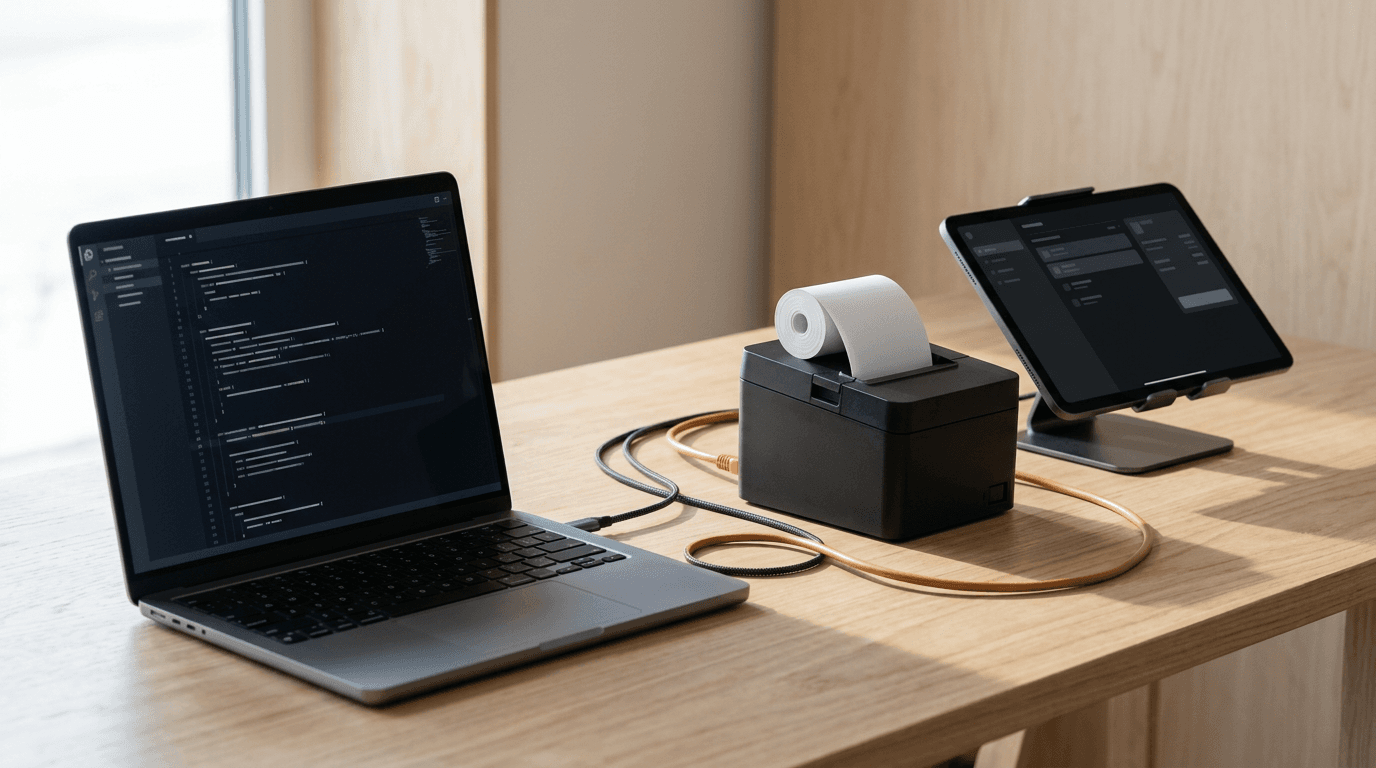
Syncing In-Store and Online Inventory with WooCommerce
In-store and online counts drift the moment two systems keep separate stock. Why it happens with WooCommerce, which sync options close the oversell window, and what a complete POS sync covers.
 Mathias NielsenCEO, Final POS
Syncing in-store and online inventory comes down to one requirement: both channels have to sell from the same stock pool, updated the moment a sale happens. Anything less (nightly imports, spreadsheet uploads, a staff member adjusting counts after close) leaves a window where your WooCommerce store happily sells a product your counter sold an hour ago.
More online stores run on WooCommerce than on any other e-commerce platform, per W3Techs usage data at publication¹, and plenty of the merchants behind them also sell somewhere physical: a shop, a market stall, a pop-up. This post covers why counts drift, which sync options exist, and what a complete WooCommerce POS sync actually includes.
Why do in-store and online inventory counts drift?
Counts drift because two systems each keep their own number and only compare notes occasionally. Your POS (point of sale, the system that rings up in-person purchases) knows what sold at the counter. WooCommerce knows what sold online. Between reconciliations, both are wrong.
The failure modes are predictable:
Overselling. An online order arrives for an item that sold in person this morning. You refund, apologize, and hope the review is kind.
Double data entry. Every new product gets created twice, with two chances for a typo in price or SKU (the product code used for tracking).
Phantom stock. Returns, damage, and miscounts get logged in one system and not the other, so your available number slowly detaches from what is on the shelf.
Wasted hours. Someone spends part of every week exporting, importing, and eyeballing spreadsheets to force the two numbers back together.
At low volume this is an annoyance. At real volume it is refunds, lost sales on items showing out of stock that are sitting on the shelf, and inventory reports you stop trusting.

What are your options for syncing WooCommerce inventory?
There are three broad approaches, and they differ mainly in how big the oversell window is.
Manual updates. Adjust WooCommerce stock by hand whenever something sells in person. Free, and fine for a stall selling twelve one-of-a-kind items. It stops working the day you are too busy to do it, which is exactly the day you oversell.
Scheduled connectors. Most POS systems reach WooCommerce through third-party middleware (a separate paid service that ferries data between the two) syncing on a timer: every 15 minutes, hourly, sometimes nightly. Better, but the gap between syncs is still an oversell risk on fast-moving items, and you have added another subscription and another vendor to debug when a sync silently fails.
Native event-based sync. The POS and WooCommerce talk to each other directly, and every change pushes the moment it happens (event-based means updates fire per sale, not per schedule). A counter sale decrements the online count immediately, and vice versa. No timer, no middleware, no window.
If your products are one-per-SKU or move fast, the third option is the only one that actually closes the gap.
What should a full WooCommerce POS sync cover?
Inventory alone is not enough, because inventory errors usually start somewhere else. A complete sync covers four data types:
Products. Names, prices, descriptions, categories, and images flow from WooCommerce into the POS, so the catalog exists exactly once.
Inventory. Both channels deduct from a single stock pool in real time.
Orders. Web orders land in POS reporting alongside counter sales, so revenue and stock movement live in one place.
Customers. Profiles stay unified across channels instead of duplicating.
Ask about the mechanics too: whether the sync is event-based or on a timer, how the initial import handles a large catalog, whether you can choose which product categories sync, and how multiple locations are handled (which location's stock feeds the web store). Those answers separate a real integration from a checkbox on a feature list. For a broader look at stock control at the counter, see POS inventory management, and if you are still choosing a system, start with how to select a POS for your e-commerce store.
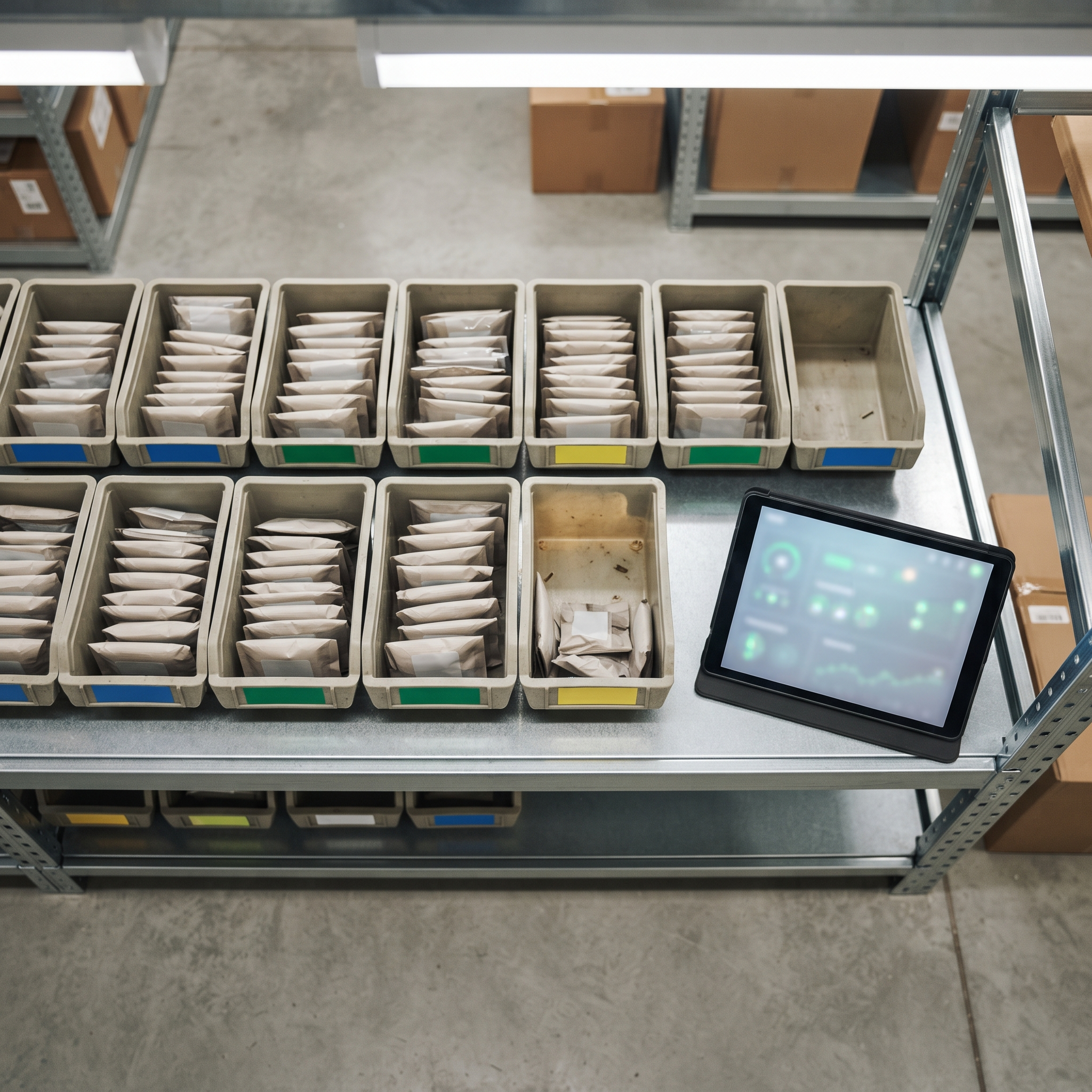
How does Final sync with WooCommerce?
Final's WooCommerce extension is, as far as we can tell, the most full-featured WooCommerce sync of any POS app: all four data types (products, inventory, orders, and customers), synced event-based in real time rather than on a schedule. You install the extension from the Merchant Hub, install the Final POS plugin on your WordPress site, and paste one authentication key to connect the two. The step-by-step setup guide walks through it; plan for the initial import to take an hour or more on a large catalog.
Two details worth knowing. You choose which product categories, customers, and order history sync, so you are not forced into an all-or-nothing import. And with multiple locations, your web store draws from one outlet's stock while other outlets manage theirs independently; stock transfers move inventory between them when needed.
So, how do you keep in-store and online inventory in sync?
One catalog, one stock pool, updates pushed per event rather than per schedule, and orders and customers along for the ride. Rule of thumb: if your sync runs on a timer, your counts are already wrong somewhere; you just have not noticed yet. If WooCommerce is your storefront, the Final POS WooCommerce extension is the fastest way to get the counter and the website onto the same number.
Frequently asked questions
Does WooCommerce track inventory on its own?
Yes, WooCommerce has built-in stock management for online sales, but it cannot see in-person sales. A POS integration is what keeps both channels deducting from the same count.
What data should sync between WooCommerce and a POS?
Four types: products, inventory, orders, and customers. Inventory-only syncs leave you with duplicate catalogs and split reporting.
How often should WooCommerce inventory sync run?
Ideally never on a schedule. An event-based sync pushes each change the moment it happens, which removes the oversell window that timed syncs leave open.
Which POS syncs fully with WooCommerce?
Final syncs products, inventory, orders, and customers with WooCommerce in real time through its WooCommerce extension, which we believe makes it the most full-featured POS sync available for Woo.
How does a WooCommerce sync work with multiple store locations?
Typically the web store is tied to one location's stock pool. In Final, other outlets manage their inventory independently, and stock transfers move items between locations when needed.