



How to Turn Any iPad or Tablet Into a Custom Self-Checkout Kiosk in Under 15 Minutes
Skip the $3,000 hardware bundles and monthly software fees. Learn how to use Flow Studio and Final Station to turn any iPad or Android tablet into a custom self-checkout kiosk in under 15 minutes.

Walk into a busy lunch spot at 12:15 PM and watch what happens when six people queue up behind one customer paying with coins and asking twelve questions about gluten. At least two of those six people check the line, check their watch, and walk out. When restaurant and retail owners call their point of sale rep to fix this with a self-ordering station, they usually get hit with a quote for a proprietary stand, a monthly software add-on fee, and a mandatory multi-year contract extension.
You don't need a proprietary monolith bolted to the floor to take self-service orders. Most businesses already have an extra iPad or Android tablet sitting in a back-office drawer. Pair that existing hardware with a custom self-checkout kiosk POS flow, and you can spin up a line-busting station before tomorrow's lunch rush starts.
Why Do Traditional Kiosk Bundles Lock You Into Expensive Hardware and Monthly Fees?
Traditional POS providers price self-checkout hardware like enterprise real estate. On Clover, Lightspeed, or Shopify POS, adding a customer-facing kiosk rarely means just turning a tablet around. They force you into specific hardware enclosures, per-device monthly licensing fees, and rigid layouts that look identical to every other shop on your block.

Flow Studio lets you prompt custom checkout screens in plain English and apply your brand colors and oversized touch targets automatically.
Look at the actual numbers:
Clover locks you into fixed hardware and software bundles tied to 3-to-5-year processing contracts, complete with early termination fees and tiered rates between 2.3% and 3.5%.
Lightspeed starts its monthly software tiers around $109 per month, gates key features behind higher plans, and penalizes you for using outside processors.
Shopify POS requires a base ecommerce subscription plus $89/month POS Pro fees per location just to unlock advanced in-store features.
Square keeps entry hardware accessible, but forces a standard layout and a 2.6% + $0.10 processing rate where you can't customize how the customer moves from screen to screen.
Worse than the cost is the layout rigidity. Staff-facing registers are built for speed and dense information: tiny buttons, color-coded SKUs, complex discount menus. When traditional systems offer a "kiosk mode," they usually just strip a few admin buttons off the cashier screen. Customers end up staring at confusing modifier grids, get stuck trying to go back a step, and call a staff member over anyway.
We built Final around a different rule: your software should adapt to your screens, and you shouldn't pay a monthly tax to run your own tablets. You can build your own POS with custom checkout flows at zero monthly software cost, deploy them to unlimited Stations under Run, and only pay when you process a card transaction.
Step 1: Customize a Ready-Made Flow or Prompt Flow Studio
Building a customer-facing kiosk doesn't mean staring at a blank canvas or hiring a developer. Flow Studio is how you customize the POS in Final, and most merchants start by installing and configuring a pre-built flow from the Flow Library.
Install a ready-made self-checkout flow in minutes, drop in your logo and receipt footer, and choose which tools appear on the home screen. Need something a standard layout doesn't cover? Open Flow Studio and describe it in plain English. Flow Studio creates a working flow directly from your description, or even from a screenshot of a layout you like.
Instead of dragging boxes around for hours, type a prompt like:
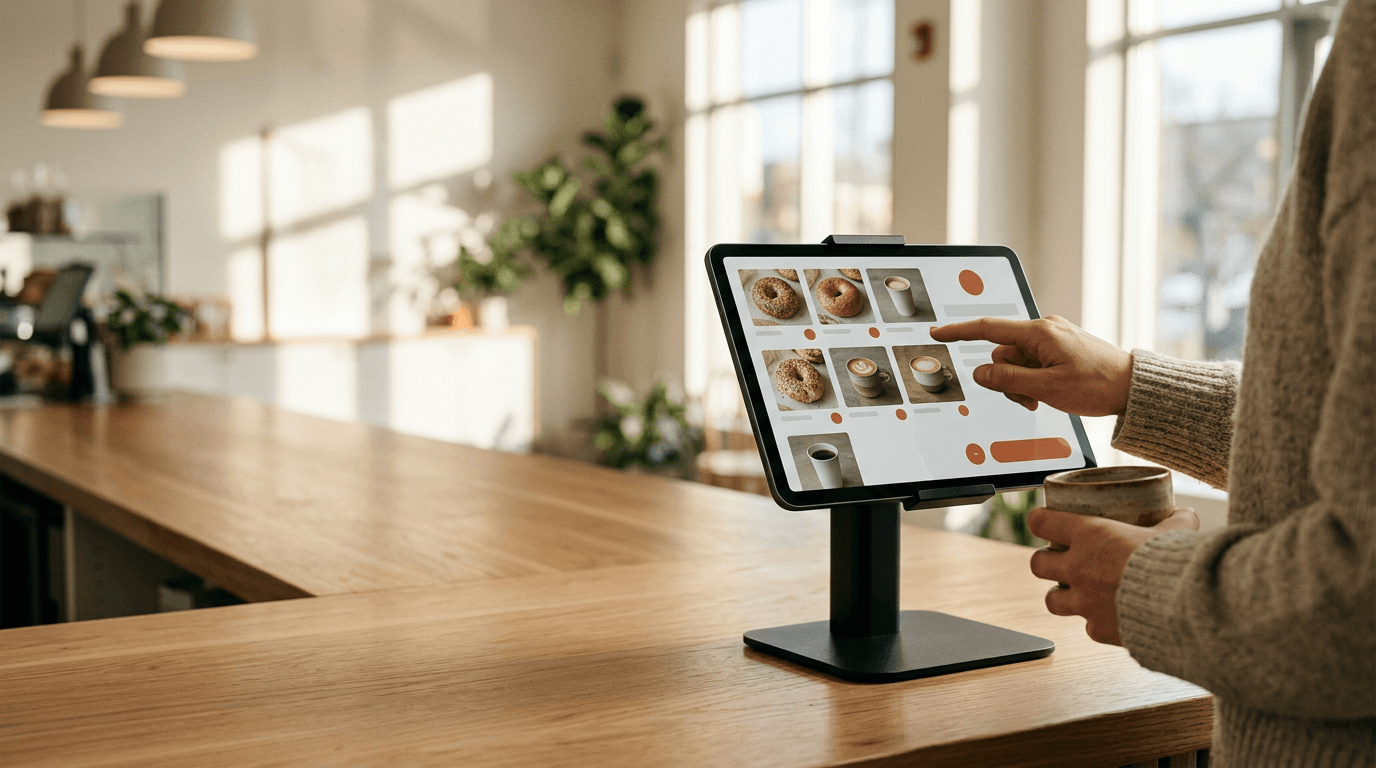
"Create a self-service kiosk flow for a bagel shop. Start with a full-screen welcome tap screen. Show large photo categories for Bagels, Schmears, and Coffee. Require customers to pick toasted or not toasted before adding a bagel to the cart. Disable cash payments and remove the discount button."
Every account gets 1,000 free build credits a day (up to 5,000 per month), plenty to generate, test, and refine your kiosk screens using Build, Plan, and Ask modes with a live preview. Because Flow Studio builds directly on Final's commerce rails, it automatically wires your existing product catalog, tax rules, and inventory counts from Manage right into the kiosk.
Step 2: Apply Your Brand Automatically with the AI Design System
A self-checkout screen is a billboard inside your store. If it looks like a sterile gray spreadsheet, customers hesitate to touch it.

Visual WHEN/THEN rules prompt contextual upsells on every order while interactive dietary filters let customers sort the menu themselves.
You don't have to manually color-pick every button across twenty screens in Flow Studio. Describe your brand once in the AI design system—your primary hex colors, typography style, button roundness, and contrast preferences—and the system applies those rules across every step of your flow.
On a self-checkout kiosk, visual hierarchy does the work a cashier normally does out loud:
Oversized touch targets: Make category cards and "Add to Order" buttons big enough that a customer holding a coffee cup in one hand never mis-taps.
High-contrast callouts: Use distinct accent colors for required selections versus optional add-ons so nobody gets stuck wondering why the "Pay Now" button is grayed out.
Clean product photography: Pull high-resolution item images straight from your Manage catalog.
Step 3: Add Upsell Logic, Allergen Filters, and Locked-Down Permissions
A tablet never forgets to ask if the customer wants avocado, an extra espresso shot, or a cookie at checkout. A rushed cashier with eight people in line skips the upsell every time.
Using WHEN/THEN automations and conditional logic in Flow Studio, you build smart rules directly into the buying path. Food businesses can check our guide on building custom modifiers, split bills, and conditional logic for your restaurant POS to see how deep these rules go. For a self-service setup, three configurations matter most:
Contextual Upsells: Set a WHEN/THEN rule so that WHEN a customer adds any sandwich to their cart, the flow THEN displays a visual pop-up offering chips and a drink for $3.50 before returning to the main menu.
Customer-Driven Filters: Put interactive dietary toggles (Vegan, Gluten-Free, Nut-Free) at the top of the screen to dynamically filter your Manage catalog in real time, saving counter staff from answering ingredient questions.
Locked-Down Kiosk Security: A customer should never be able to tap a corner five times and open your cash drawer or view daily sales reports. Strip out Station Home access, refund controls, price overrides, and custom sale tabs, leaving only the guided buying path. Gate the admin exit screen behind a manager PIN for when staff need to step in.
Step 4: Deploy to an iPad, Android Tablet, or Final Flex via Final Station
Once your flow is ready in Flow Studio, publish it via Run to the Final Station app on any iOS, Android, macOS, or Windows device you already own, or run it on dedicated counter hardware like Final Flex.

Pair your tablet kiosk with a dedicated payment terminal or Tap to Pay so customers can check out and trigger kitchen tickets without staff intervention.
AI app builders like Lovable, v0, or Bolt can generate a pretty web mockup from a prompt. They fall apart at the counter because they have no commerce rails, no inventory sync, and no way to talk to receipt printers or card terminals. Final is built for physical stores. Hit deploy in Flow Studio and your kiosk is live immediately, with no App Store review wait.
Getting your screen on the counter follows the same steps covered in our guide on how to build and deploy your first flow:
Open Final Manage: Go to Run in your Manage dashboard and create a new Station for your kiosk (unlimited Stations and Outlets are included at no monthly fee). To test your kiosk layout in a browser for training before connecting hardware, set up a Virtual Station.
Assign the Flow: Link your new self-checkout flow to that kiosk Station while keeping your faster, staff-facing flow assigned to your main counter register.
Launch Final Station: Download the native Final Station app on your iPad, Android tablet, Mac, or Windows touchscreen, log in, and select your kiosk Station.
Want purpose-built kiosk hardware instead of an iPad on a stand? Buy a Final Flex—our 15.6" FHD tabletop self-order kiosk with an L-shape desktop stand, VESA wall mount, and terminal bracket—and own it outright. Whether you use an old iPad or a Final Flex, what makes Final different is that everything runs on one connected platform. Native offline selling keeps your line moving through brief Wi-Fi hiccups, and direct connections to thermal printers like Final Print fire physical order tickets automatically.
How Do Customers Pay at a Tablet Self-Checkout Kiosk?
A self-checkout kiosk only saves labor if the customer can pay without waving down a cashier. Final Pay is built directly into every flow, so there's no third-party gateway to bolt on and no separate payout portals to reconcile.
How you take card-present payments depends on your hardware setup:
Tap to Pay on iPhone or NFC Android: On an NFC-enabled device like Final Flex, or a compatible iPhone or NFC Android device used for line-busting, customers tap their contactless card, Apple Pay, or Google Pay directly on the glass. No extra reader required.
Paired Payment Terminals: For an iPad or tablet enclosed in a counter stand, pair a dedicated Bluetooth card reader or mount an unattended payment terminal in a bracket alongside your screen. Tapping "Checkout" on the tablet wakes up the terminal with the exact total.
All-in-One Handhelds or Counters: Run your checkout flow on a Final Touch, Final Touch Pro, or Final Move, which combine the touchscreen Station and payment terminal into one merchant-owned device.
Every transaction runs on Final Pay at flat rates: 2.49% + $0.10 in the US and worldwide, 1.99% + $0.10 CAD in Canada (with Interac debit at 0.5% + $0.07), and 0.99% + €0.10 in Europe. Cash is $0. You pay no monthly software fees, no terminal activation fees, and sign no multi-year contracts.
Put Your Drawer Tablet to Work Today
Pull that spare tablet out of the back office, charge it up, and log into Final. Pick a starter layout from the Flow Library or spend ten minutes in Flow Studio describing how your best cashier guides a customer through an order. Wire in a single upsell prompt before the payment screen, assign it to a new Station under Run, and put it on the counter before tomorrow's rush.
Frequently asked questions
Can I run a self-checkout kiosk and a cashier counter on the same POS account?
Yes. Run lets you deploy unlimited live flows connected to the same Manage catalog at no monthly fee. Your main counter Station can run a fast, staff-facing flow while your tablet Station runs a locked-down customer kiosk flow, with every order syncing inventory and reporting in one place.
Do I need a separate payment terminal for an iPad or Android kiosk?
It depends on the device. Compatible iPhones and NFC-enabled Android devices accept contactless cards and mobile wallets directly on the screen using Tap to Pay—no extra reader needed. For iPads or mounted tablets like Final Flex, pair a Bluetooth card reader, mount an unattended payment terminal, or run your flow on an all-in-one device like Final Touch.
How much does it cost per month to run a self-checkout kiosk on Final?
The monthly software fee for Build, Manage, and Run is $0, and you can add unlimited Stations and Outlets at no extra cost. You also get 1,000 free build credits per day (up to 5,000 a month) to customize your flows. You only pay Final Pay processing rates when you take a card payment: 2.49% + $0.10 in the US and worldwide, 1.99% + $0.10 CAD in Canada, and 0.99% + €0.10 in Europe.