



How a Cash Drawer Opens: Kick Codes and Custom POS Apps
A standard cash drawer has no brain of its own: it relies on a 5-byte ESC/POS kick code sent through the receipt printer. Here is how the hardware port, byte sequence, and session accounting actually work.
 Mathias NielsenCEO, Final POS
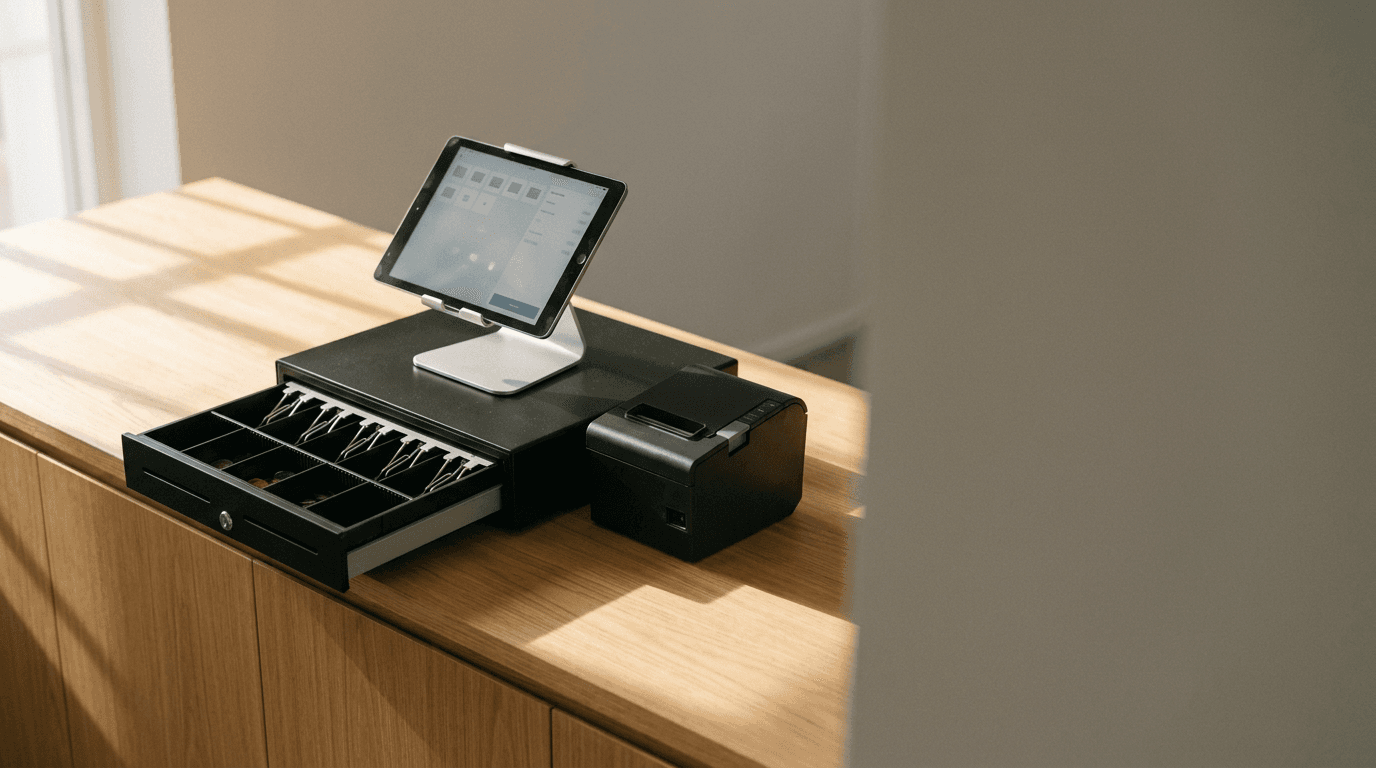
Crawl under a retail counter to trace the cable coming out of a cash drawer, and you might think someone wired the store's phone line into the register by mistake. That six-pin RJ12 connector looks identical to a landline jack. It plugs into the back of the receipt printer rather than the tablet or computer running the checkout. For makers building a custom POS or generating an interface with an AI builder, this physical quirk is usually where a clean browser prototype hits the hardware wall.
Your app can't talk to a standard cash drawer directly. It has to ask the receipt printer to fire an electrical pulse down that phone-style cord, and getting that pulse from a modern app to the metal spring at the counter requires knowing how the cash drawer kick code works.
Printer-Driven Drawers and the DK Port
A printer-driven cash drawer is a mechanical steel box with a 12-volt or 24-volt solenoid latched to the spring release. It has no processor, no IP address, and no Bluetooth radio. It relies entirely on the receipt printer's Drawer Kick (DK) port to supply the brief burst of DC current needed to pull the latch back and let the spring push the tray out.

Printer-driven cash drawers connect to the receipt printer's Drawer Kick (DK) port using a six-pin RJ12 modular cable.
The industry standardized on this setup decades ago for two practical reasons: tablet and computer ports don't output 24 volts of power, and receipt printers already have a heavy-duty power brick sitting under the counter. Routing the drawer through the printer saved an outlet and a port on the host terminal.
When you shop for a counter drawer (like the Max cash drawer included in the Final Register bundle, which uses an RJ12 cable, a 3-position lock, 5 bill trays, 6 removable coin cups, and a solenoid rated for a 1-million-cycle life), you have to match the cable's pinout wiring to the printer brand. Star Micronics and Epson use slightly different pin assignments on the RJ12 connector. Plugging an Epson-wired drawer into a Star printer won't fry the box, but the solenoid will sit silent no matter how many commands your software sends.
How Do You Send a Cash Drawer Kick Code From Your App?
TL;DR: Open a printer-driven cash drawer by sending a 5-byte ESC/POS command (27, 112, 0, 25, 250) or calling the drawer method inside your printer manufacturer's SDK over an active network or Bluetooth connection.

Sending a 5-byte ESC/POS cash drawer kick code instructs the receipt printer to send a brief electrical pulse to the drawer's solenoid.
A cash drawer kick code is a specific sequence of raw ESC/POS bytes sent to a receipt printer that tells its internal controller to pulse the DK port for a set number of milliseconds. Because the printer treats the drawer pulse as just another instruction in the print stream, your custom app opens the drawer the exact same way it prints a receipt.
In raw ESC/POS decimal format, the standard command is 27, 112, m, t1, t2 (or 1B 70 m t1 t2 in hexadecimal). Each byte has a specific hardware job:
`27` (`1B` hex) and `112` (`70` hex): The ESC
pcommand header indicating a pulse instruction.`m` (`0` or `1`): The connector pin to pulse.
0fires pin 2, and1fires pin 5. Two-drawer split setups exist in bars and restaurants, so the RJ12 port carries two separate kick channels. Most single-drawer cables listen on pin 2 (0), though some developers fire both sequentially if they don't know which cable the merchant bought.`t1` (1 to 255): The "on" time, multiplied by 2 milliseconds. A value of
25energizes the solenoid for 50 milliseconds.`t2` (1 to 255): The "off" time, multiplied by 2 milliseconds. A value of
250forces a 500-millisecond cool-down pause so rapid commands can't overheat and burn out the solenoid coil.
Writing a native app or using a manufacturer protocol instead of raw byte streams? The SDK wraps these bytes into a helper method. When learning how to print to an Epson TM printer from a custom POS, you call addPulse(epos2.DRAWER_2PIN, epos2.PULSE_100) inside an Epson ePOS-Print XML payload over the local network. On Star WebPRNT, you append an <openacockpit> or peripheral activation element to your print job.
Web and AI-built apps usually get stuck at the transport layer. Safari on iOS doesn't support Web Bluetooth, and Bluetooth Classic printers require Apple MFi hardware approval per app and per printer model before iOS will let your code open a socket. Unless your custom web app talks to a LAN/Wi-Fi printer over local HTTPS (which brings its own self-signed certificate headaches) or bridges through a native wrapper, those five bytes have nowhere to go. For a full breakdown of how connection types work on tablets, see our guide on choosing a Bluetooth, BLE, or network receipt printer for an iPad POS.
What About USB and Network Cash Drawers?
You can buy cash drawers that bypass the receipt printer entirely and plug directly into a host machine via USB or Ethernet. They sound cleaner on paper, especially for merchants who prefer emailed receipts and don't want to buy a thermal printer just to pop a cash tray.
Standalone USB drawers only work cleanly on Windows or desktop Linux setups running traditional USB-HID or virtual COM port drivers. An iPad or Android tablet at a café counter can't drive a raw USB-HID cash drawer without a proprietary hub and a custom native driver.
Even when the operating system supports a direct USB drawer, experienced retail setups still stick with printer-driven drawers. Keeping the drawer slaved to the printer means your checkout logic only manages one hardware connection queue. When a customer pays with a $20 bill, your app sends a single payload containing the receipt text, the paper-cut command, and the drawer-kick bytes at the end. Everything fires in one atomic transaction.
Cash Handling Logic: Why Popping the Latch Is Only Half the Job
Wiring up the cash drawer kick code gets the metal tray to slide out. That takes an afternoon once your printer connection works. Building the software guardrails around when that tray slides out, who triggered it, and how the bills inside are reconciled at 10:00 PM is what separates a prototype from a real register.

Using the physical 3-position lock allows developers to hear the internal solenoid fire during testing without the drawer sliding open.
Makers testing an AI-generated web POS usually wire the kick command straight to the "Complete Sale" button. Then a real cashier takes a shift and immediately runs into three walls:
How do I make change or grab quarters without ringing up a fake item? You need a dedicated "No Sale" or "Open Drawer" button. An open drawer with no transaction attached is the easiest way for cash to disappear from a counter, so that button can't be a free-for-all. It needs role-based permissions, a PIN override for junior staff, and an audit log recording the staff member, timestamp, and reason.
Why is the drawer popping on card transactions? Append the ESC/POS kick bytes to every receipt template by default, and the drawer will slam into the cashier's hip every time a customer taps an iPhone. Your print pipeline needs conditional logic: fire the kick command on cash tenders, split tenders that include cash, and cash refunds, and suppress it on card-only sales.
How do I know if the drawer is $40 short at closing? Opening the drawer without tracking the session ledger leaves the store owner counting crumpled bills against a calculator tape. A working POS pairs the physical drawer kick with session accounting: prompting for an opening float when the shift starts, logging cash drops (moving excess $50 bills to a safe) and petty cash payouts (paying a window washer $20 from the till), and calculating the exact variance between expected cash and counted cash at the end of the night.
Testing Kick Codes Without Losing Your Float
Debugging printer payloads or testing conditional checkout flows gets painful fast if a heavy steel drawer is shooting out at your knees fifty times an hour. And you definitely don't want to test live drawer logic on a station holding $400 in small bills.
Use the physical 3-position key lock on the front of the drawer first. Turning the key to the manual locked position blocks the latch mechanically; you'll still hear the loud clack of the solenoid firing when your 27, 112, 0, 25, 250 command hits the printer. That confirms your software worked without forcing you to push the tray back in every thirty seconds.
Test the dual-pin behavior early, too. If your app supports multiple hardware setups, make sure your printer settings allow toggling between Pin 2 (m = 0), Pin 5 (m = 1), or pulsing both. Verify that sending an open command without printing text doesn't feed a blank two-inch strip of thermal paper every time a manager opens the till.
Built-In Cash Drawer Support in Final
Building a custom checkout should mean designing the screens, modifiers, and workflows your business needs—not reading 1990s ESC/POS hexadecimal tables or waiting weeks for printer manufacturer app approvals. We built Final POS as the world's most customizable POS on top of real commerce and hardware rails. Check out our complete breakdown of POS hardware for custom apps: printers, drawers, scanners, and displays to see how every counter peripheral fits together.
Customize a flow in Flow Studio (whether you start from a ready-made checkout in the Flow Library or describe your store's exact process from scratch), and the physical drawer and session accounting are already wired in:
Native hardware support with zero byte-wrangling: Run your flow on a Native Station vs. a Virtual Station using the Final Station app (available on iOS, Android, macOS, and Windows) or on dedicated hardware like Final Touch Pro or Final Register, and the app speaks directly to supported receipt printers to trigger the attached RJ12 cash drawer. Virtual Stations in a browser work well for testing layouts. Native Stations drive the physical peripherals: card readers, Tap to Pay, receipt printers, and the cash drawer.
Built-in Cash Management and session ledgers: Enable Cash Management on your flow with a toggle in Final Manage. Once enabled, opening a session in Station Home in Run prompts the staff member to count and enter their opening float. Throughout the shift, the Cash Management screen lists your sessions on one side and the live cash ledger on the other (showing the Opening balance and Current balance), letting authorized staff tap "Add Cash" for a change top-up or "Open Cash Drawer" to pop the physical tray without faking a sale.
Automatic End of Session reconciliation: When the shift closes, your End of Session report breaks down the opening float, cash sales and refunds, cash drops and payouts, closing count, and exact variance, synced straight to Manage.
Transparent pricing on every tender: Cash transactions on Final are always $0. When your customers pay by card via Final Pay, you pay one flat rate (2.49% + $0.10 in the US and worldwide, 1.99% + $0.10 CAD in Canada, and 0.99% + €0.10 in Europe) with no monthly software fee and no lock-in contracts.
Skip spending your weekend debugging RJ12 pinouts and writing solenoid cool-down timers. Open Flow Studio, pick a flow from the Flow Library, turn on Cash Management, and plug your drawer into your receipt printer. Your custom checkout will pop the till on the first cash sale.
Frequently asked questions
How does a POS open the cash drawer?
A POS opens a standard cash drawer by sending a short command to the receipt printer, which then fires a 12-volt or 24-volt electrical pulse out of its RJ12 Drawer Kick (DK) port. That pulse energizes a solenoid inside the cash drawer, pulling back the mechanical latch so the spring-loaded tray slides open.
Can a web app open a cash drawer?
A browser app can't connect directly to an RJ12 cash drawer, and mobile browsers like Safari on iOS don't support Web Bluetooth for printer connections. If your web app can send print jobs over a local network to a LAN or Wi-Fi receipt printer (using protocols like Epson ePOS-Print or Star WebPRNT) with a drawer attached, it can include the drawer-kick instruction in that network payload.
Should every drawer open be logged?
Yes. Log every physical drawer open with the staff member, timestamp, and reason, especially for "No Sale" opens where no transaction occurs. Tracking no-sale opens, cash drops, and petty cash payouts alongside your opening float is the only way to reconcile the drawer and explain any cash variance at the end of the shift.