



On-Reader Tipping: When to Turn It On and What to Expect
On-reader tipping puts the tip prompt on the card reader's screen instead of your POS display. When it helps, when it backfires, and what changes at the counter once it's live.
 Mathias NielsenCEO, Final POS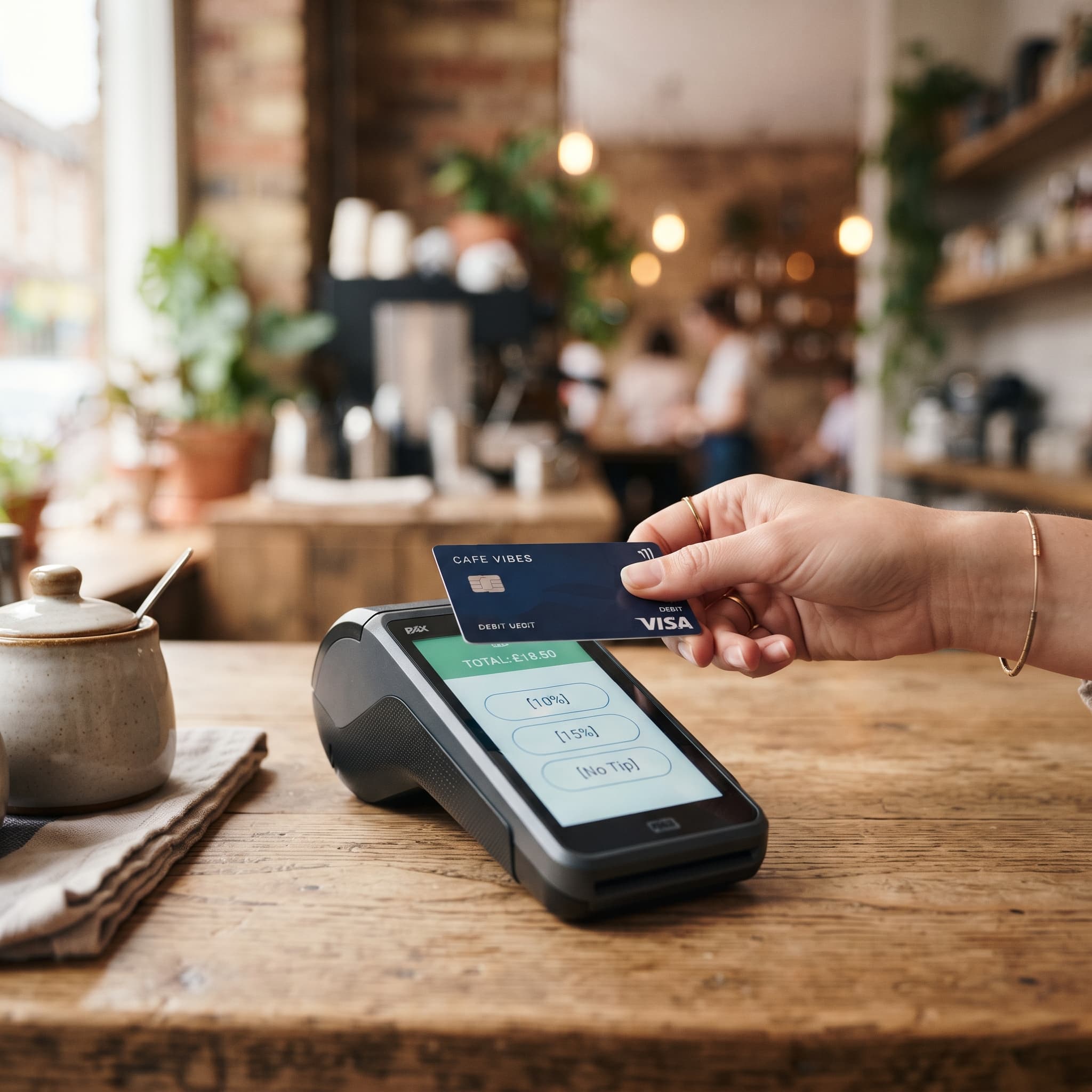
On-reader tipping moves the tip prompt off your point-of-sale screen and onto the card reader itself. The customer sees your tip options on the reader while they pay and picks one before the charge goes through: no flipped screen, no staff member asking out loud. Turn it on wherever a person actually serves the customer. In self-serve and pure retail settings, be more careful: prompts there are exactly what's feeding tip fatigue.
Here's how the feature works on Final, where it earns its keep, and what changes at the counter once it's live.
What is on-reader tipping?
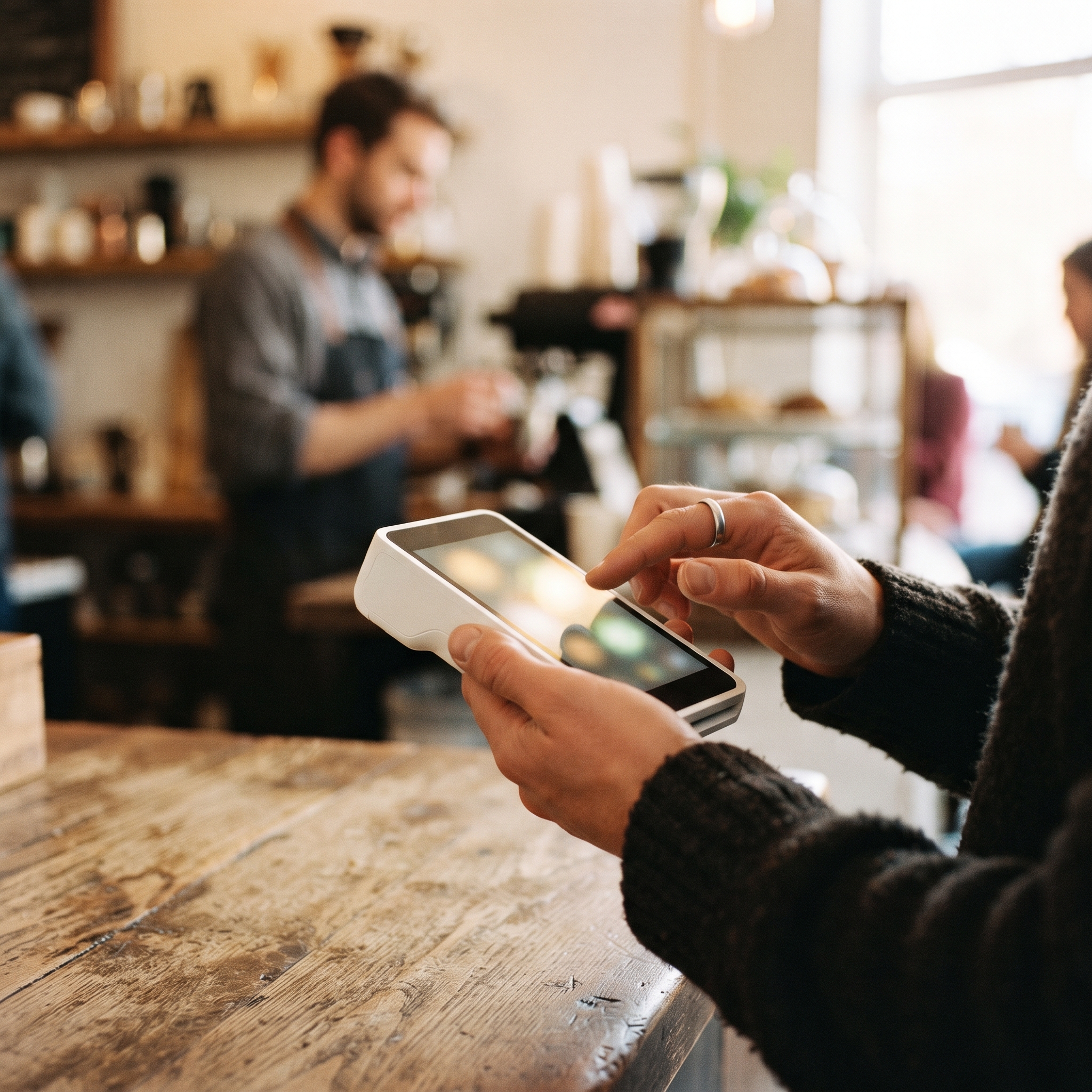
On-reader tipping shows your tip options directly on the card reader's screen during payment, instead of on the point-of-sale display. It uses the tip settings you already configure for Final Pay (the percentages, labels, and the Custom and No tip buttons) and it works with supported cloud and Bluetooth card readers. Tap to Pay and app-on-device checkouts still collect tips; they just do it on the point-of-sale screen instead.
The practical difference is where the decision happens. The prompt sits inside the payment moment, on a device the customer is already looking at, with nobody watching over their shoulder. That's the whole feature, and it's enough to change tipping behavior at your counter.
When should you turn it on?
Turn it on anywhere service is personal and tipping is already the norm. Pew Research's 2023 tipping survey found 92% of Americans always or often tip at sit-down restaurants, 78% for haircuts, and 70% for a drink at a bar¹. In those settings the customer already intends to tip; the reader prompt just removes the fumbling: no flipping a screen around, no "it's just going to ask you a question" script for your staff.
Counter service and quick service call for more judgment. Only 25% of people regularly tip when buying coffee, and 12% at fast-casual restaurants². Meanwhile, 72% of U.S. adults say tipping is expected in more places than it was five years ago³, and more people oppose (40%) than favor (24%) businesses suggesting tip amounts on a screen⁴. None of that means skip it. Tips are real income for counter staff. It means configure it with restraint: modest default percentages and a No tip button that's genuinely easy to hit.
When should you leave it off?
Leave it off where no service norm exists. If a customer picked a product off a shelf and carried it to the till themselves, a tip prompt reads as a toll booth, and the goodwill you burn costs more than the handful of tips you'd collect. The same goes for self-checkout flows where no staff member was involved in the sale.
What should you expect after enabling it?
Steadier tip collection on card-present payments (payments where the card or phone is physically tapped or inserted). Every eligible payment shows the prompt, so tips stop depending on whether staff remembered to ask or the customer spotted a tip line.
More customers pressing No tip. That's the feature working as intended: a clean, pressure-free opt-out is what keeps the prompt from souring regulars.
Tips in your reporting. Tips are recorded with the payment and show up in your reports, so tip-outs to staff are auditable instead of guesswork. See how tipping works on Final.
No new line item on your costs. Tipping is a built-in Final Pay setting, with no separate app or add-on subscription. Final doesn't charge a monthly software fee in the first place; if you're comparing systems, here's what no-monthly-fee POS pricing actually means.
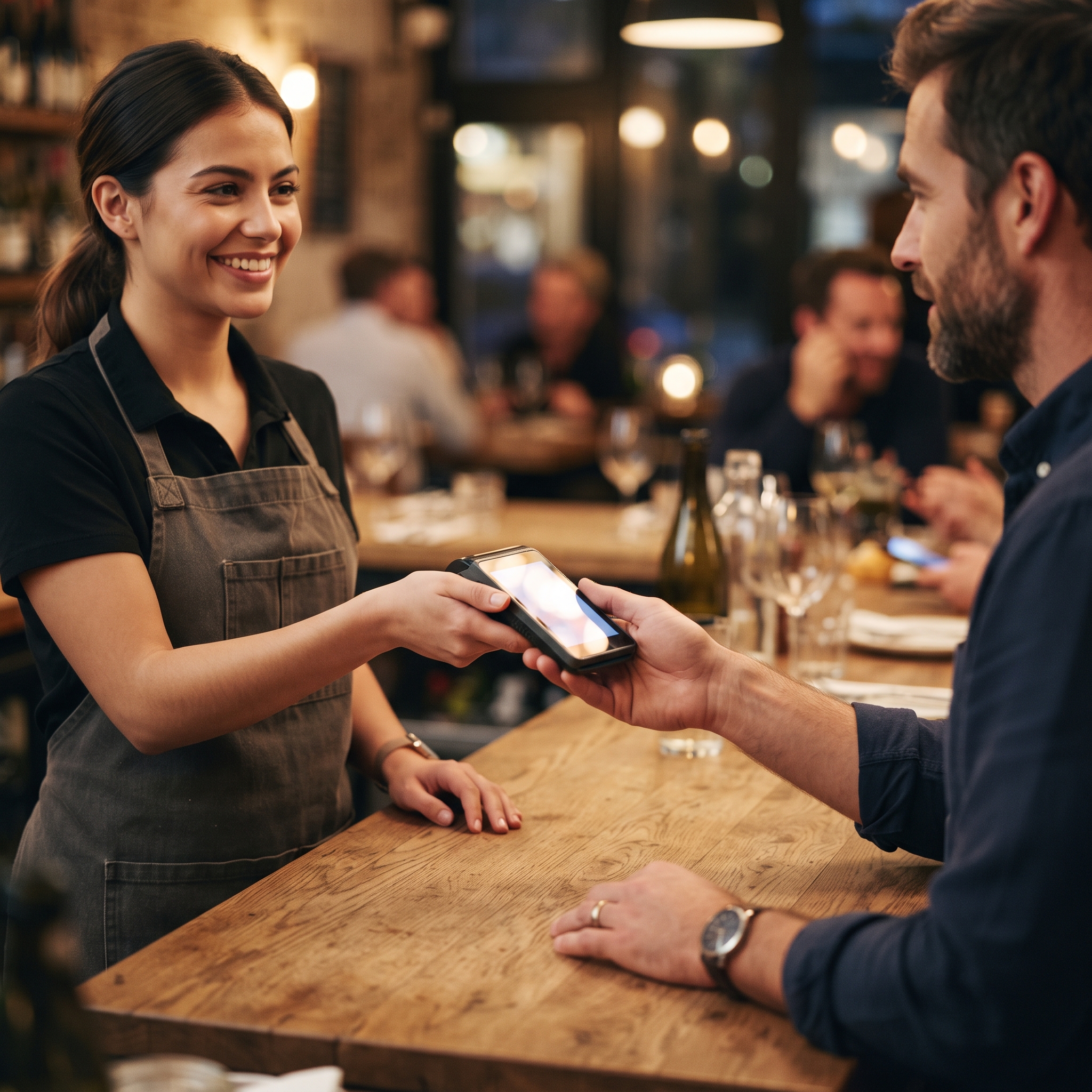
A slightly different checkout rhythm. The customer holds the reader for an extra beat while they choose. Train staff to hand over the reader and stop talking. Hovering is what makes tip screens feel coercive.
How do you set it up?
Two steps, both starting in the Merchant Hub. First, configure your tip options under Pay → Setup: percentages, labels, and the Custom and No tip buttons. Second, push the setting to your reader: toggle Tips off and back on, wait up to 10 minutes, then reconnect your terminal to the Station. The full sequence is in the enable on-reader tipping guide. Run a test payment and confirm the tip screen appears on the reader before you open.
So, when should you turn on-reader tipping on?
If a human serves the customer, turn it on; if the customer serves themselves, think twice. Where tipping is already expected, the reader prompt collects tips more consistently and takes the awkwardness out of asking. Where it isn't, the restraint in your configuration (modest defaults, an easy No tip) decides whether the prompt reads as fair or as tip-farming. Set your options, push them to the reader, and test it before the morning rush. New to Final? Get started here.
Frequently asked questions
Which card readers support on-reader tipping?
Supported cloud and Bluetooth card readers show the tip screen on the reader itself. Tap to Pay and app-on-device checkouts still collect tips, but on the point-of-sale screen instead.
Does on-reader tipping cost extra?
No. Tipping is a built-in Final Pay setting. There's no separate app, add-on, or subscription for it.
Can I change the tip percentages customers see?
Yes. In the Merchant Hub under Pay → Setup you can set the percentages, labels, and the Custom and No tip buttons.
Do tips show up in my reports?
Yes. Tips are recorded with the payment and appear in your reporting, so tip-outs to staff are auditable.
Why isn't the tip screen showing on my reader?
Toggle Tips off and back on under Pay → Setup, wait up to 10 minutes, then disconnect and reconnect your terminal to the Station. The reader loads the tip configuration when it connects.